Enter and amend scores
Key in a score for a judge who cannot use their own device, or correct a score that was entered wrong.
Who can do thisSuper AdminAdminModeratorAuditorTabulator
Every scorecard a judge submits appears on the round's Scorecards tab, one row per judge and entrant. Everyone listed above can read the tab. Only a Super Admin, an Admin or a Moderator can add or change a score. Auditors and Tabulators see the list without the buttons. Tabulators see it only for rounds they are crewed on.
Find the Scorecards tab
- Go to Rounds and choose View on the round
- Scroll down to the row of tabs and choose Scorecards
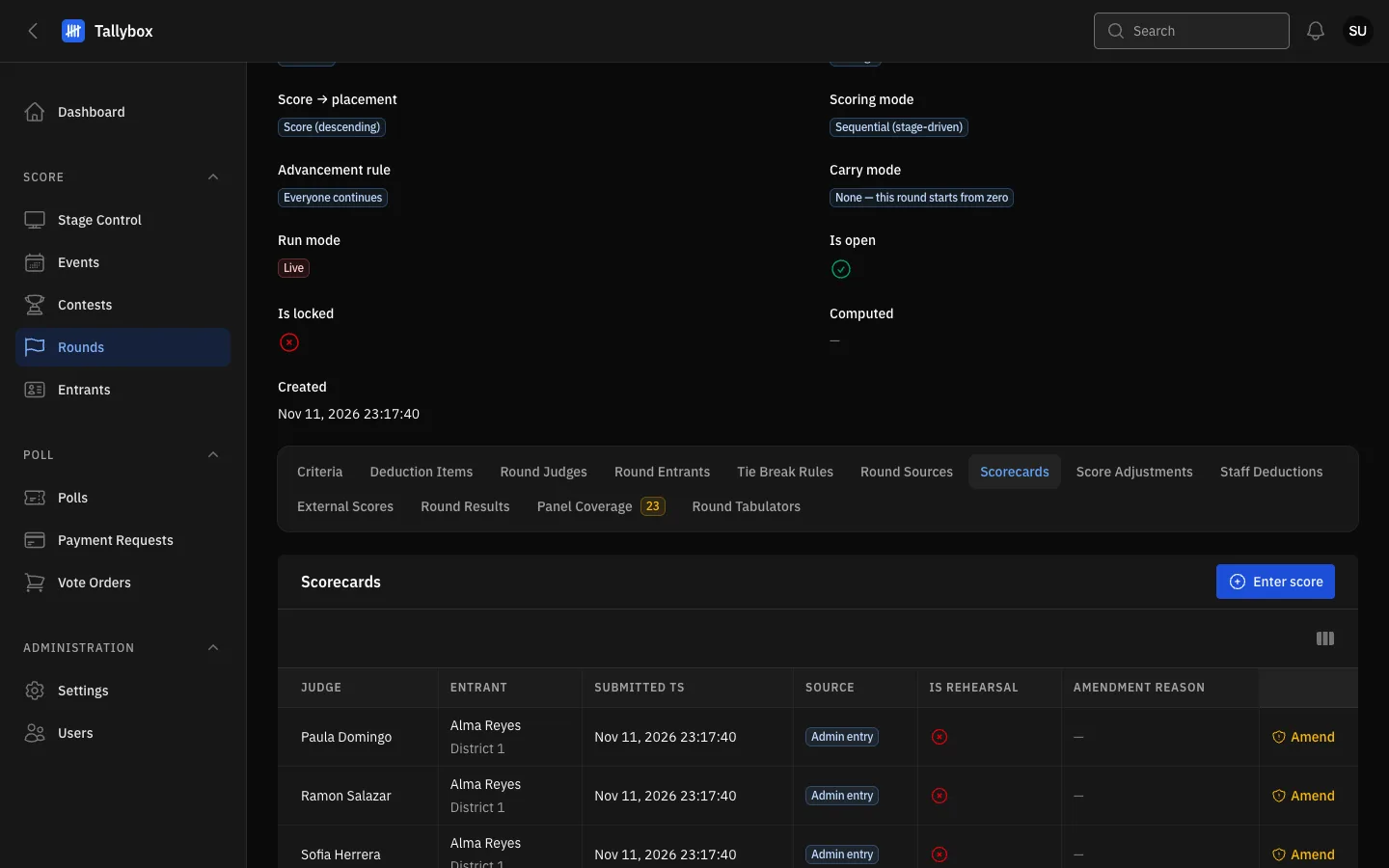
- Scorecards tab: the list of every score handed in for this round.
- Enter score: adds a score on behalf of a judge (Super Admin, Admin, Moderator).
- Column picker: choose which columns to show.
- Amend: corrects a score that is already in (Super Admin, Admin, Moderator).
The Source column tells you how each score arrived, for example from the judge's own device or entered by staff. When a score has been corrected, the Amendment reason column shows why. Only the current version of each score is listed.
Enter a score for a judge
Use this when a judge has no working device, or you were given a paper scoresheet to key in. It does not work once the round is locked, which happens when it is computed; an error message tells you if so.
- Choose Enter score above the table
- Pick the Judge and the EntrantOnly judges on this round's panel and entrants in this round are listed.
- Type a number for every criterionEach box accepts only the range the criterion allows.
- If the round has judge deductions, fill in the Deductions box too
- Choose Submit
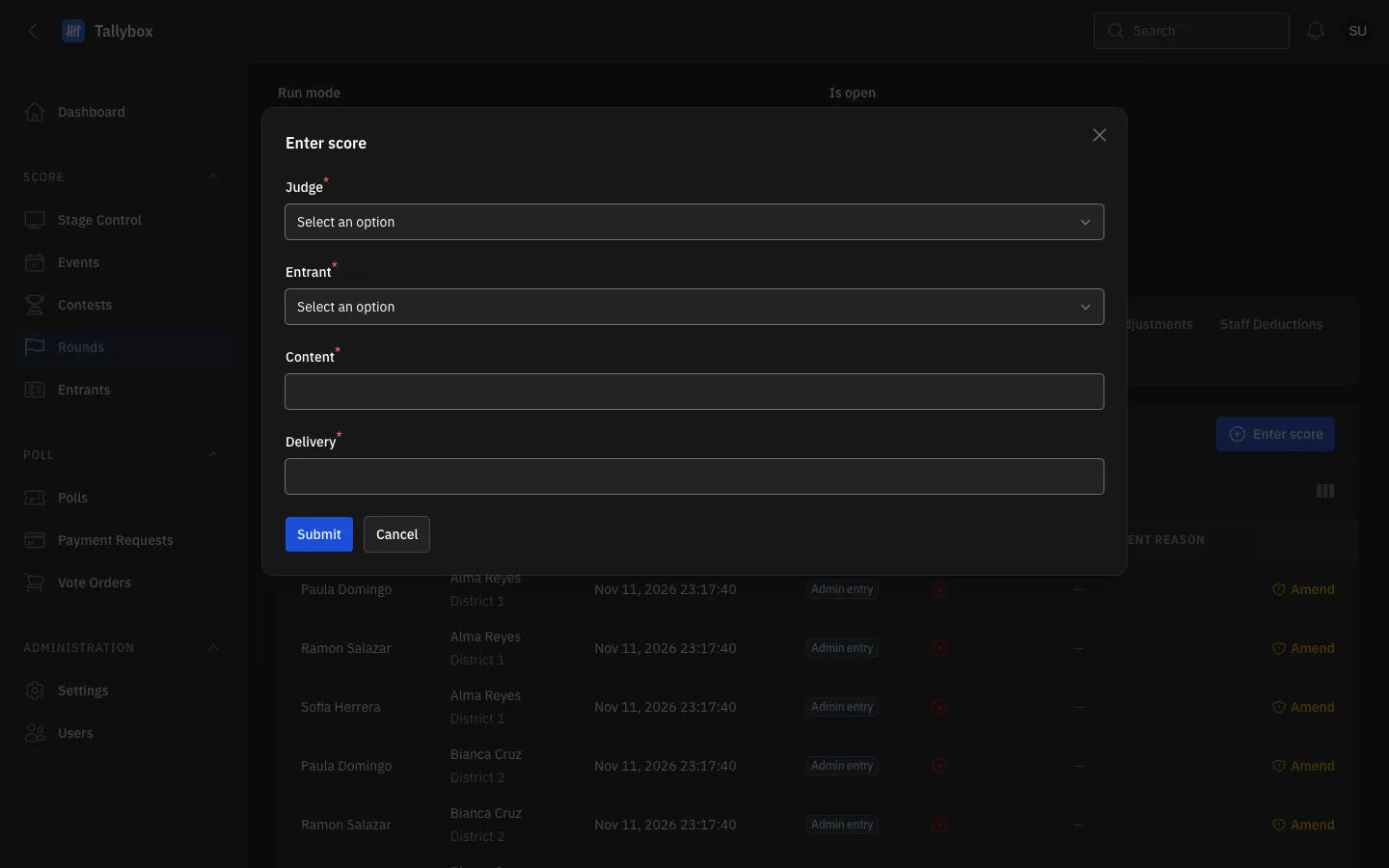
- Judge: whose score this is.
- Entrant: who was scored.
- One box per criterion. The names come from the round's criteria.
- Submit: saves the score.
Amend a score
An amendment does not overwrite the old score. It adds a corrected score that replaces it and keeps the old one on record, together with your reason.
- Find the row on the Scorecards tab and choose Amend
- Change the numbers that are wrongThe boxes start with the current values.
- Write the ReasonIt is required and goes on the audit trail, so say what was wrong.
- Choose Submit
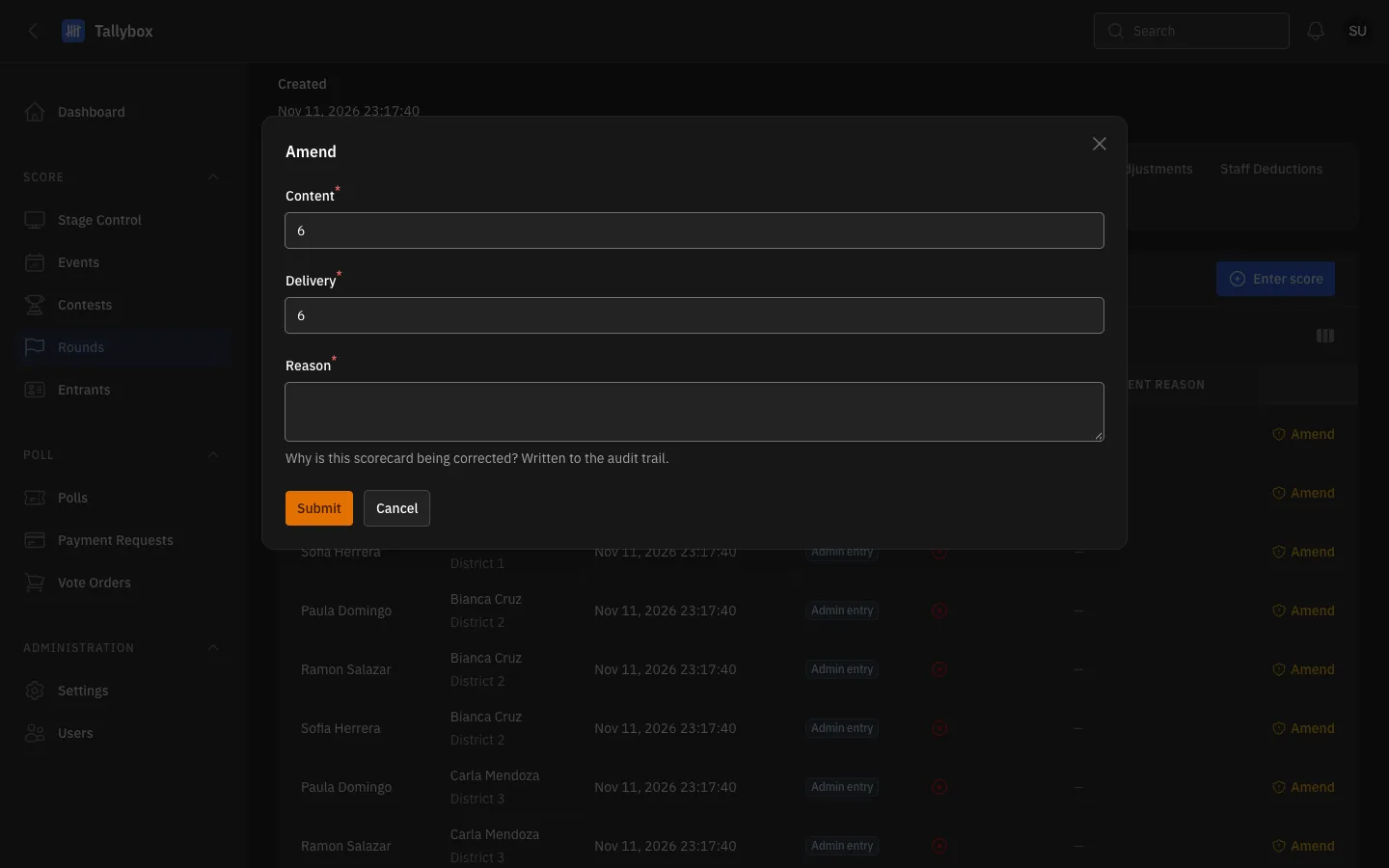
- The current scores, ready to change.
- Reason: required. It is kept with the correction.
- Submit: saves the corrected score.
To follow scores as they arrive, see Follow the live scoresheet.