Review and re-check payment requests
See every attempt to collect payment, spot ones that are stuck, and ask the payment provider to confirm a payment again.
Who can do thisSuper AdminAdminFinance
A payment request is one attempt to collect payment for a vote order. One order can have several if the voter tried again. Finance can read and export everything here. Only a Super Admin or an Admin can re-check a payment.
Read the list
- Choose Payment Requests in the left menuIt is under Poll.
- Search by request code, vote order code or provider referenceThe provider reference is the number the payment provider gave the payment.
- Use the filter button to show one StatusPending, Completed, Failed or Expired.
- Choose View at the right end of a row to open it
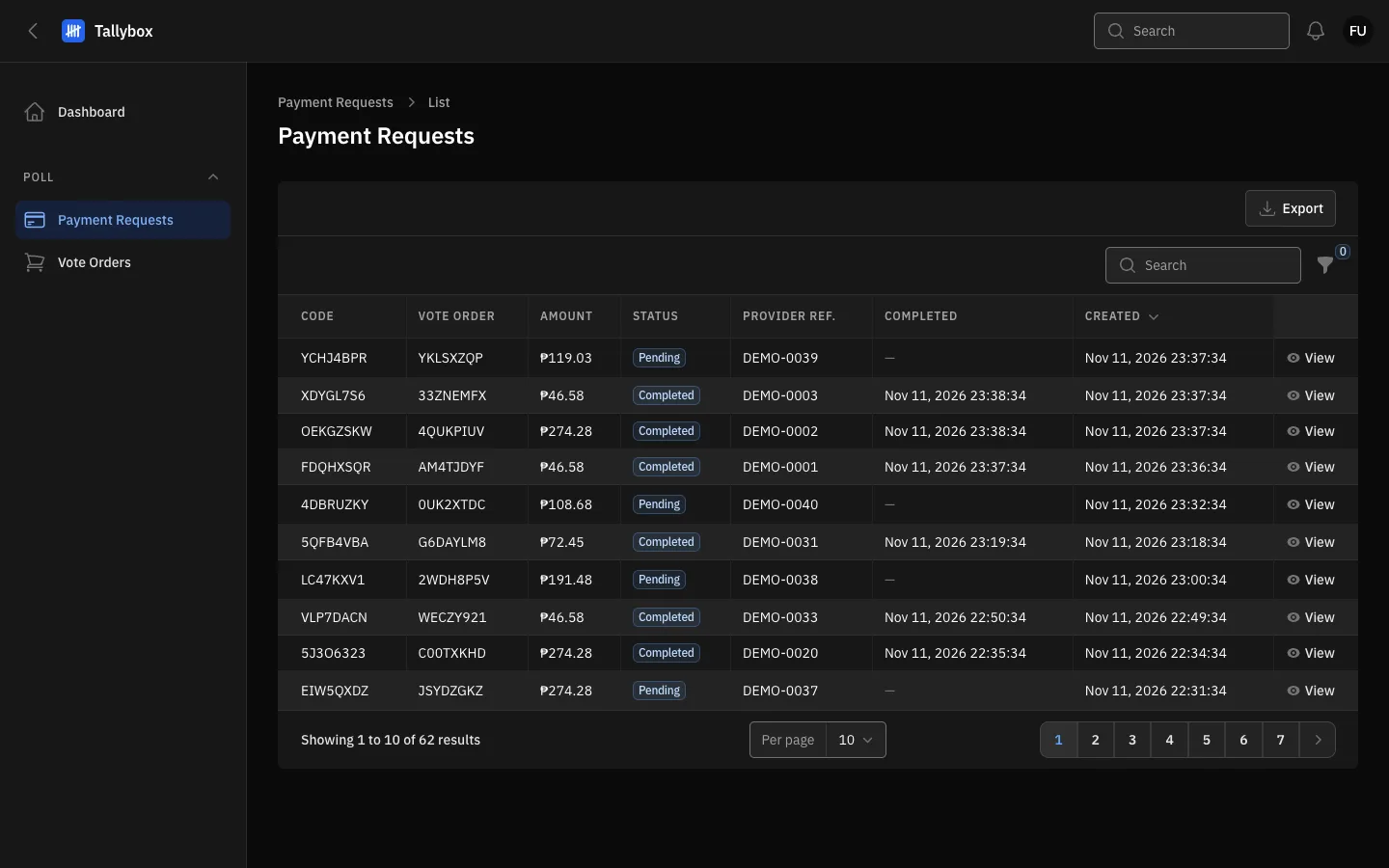
- Export: sends the rows you are looking at to a spreadsheet.
- Provider ref.: the payment provider's own number for this payment.
- Pending: payment has not been confirmed yet.
- View: opens the payment request.
Read one request
The page shows its Status, the Vote order it belongs to, the Amount, the Provider reference, when it Expires / expired and when it was Completed. The vote order code is a link: choose it to jump to that order.
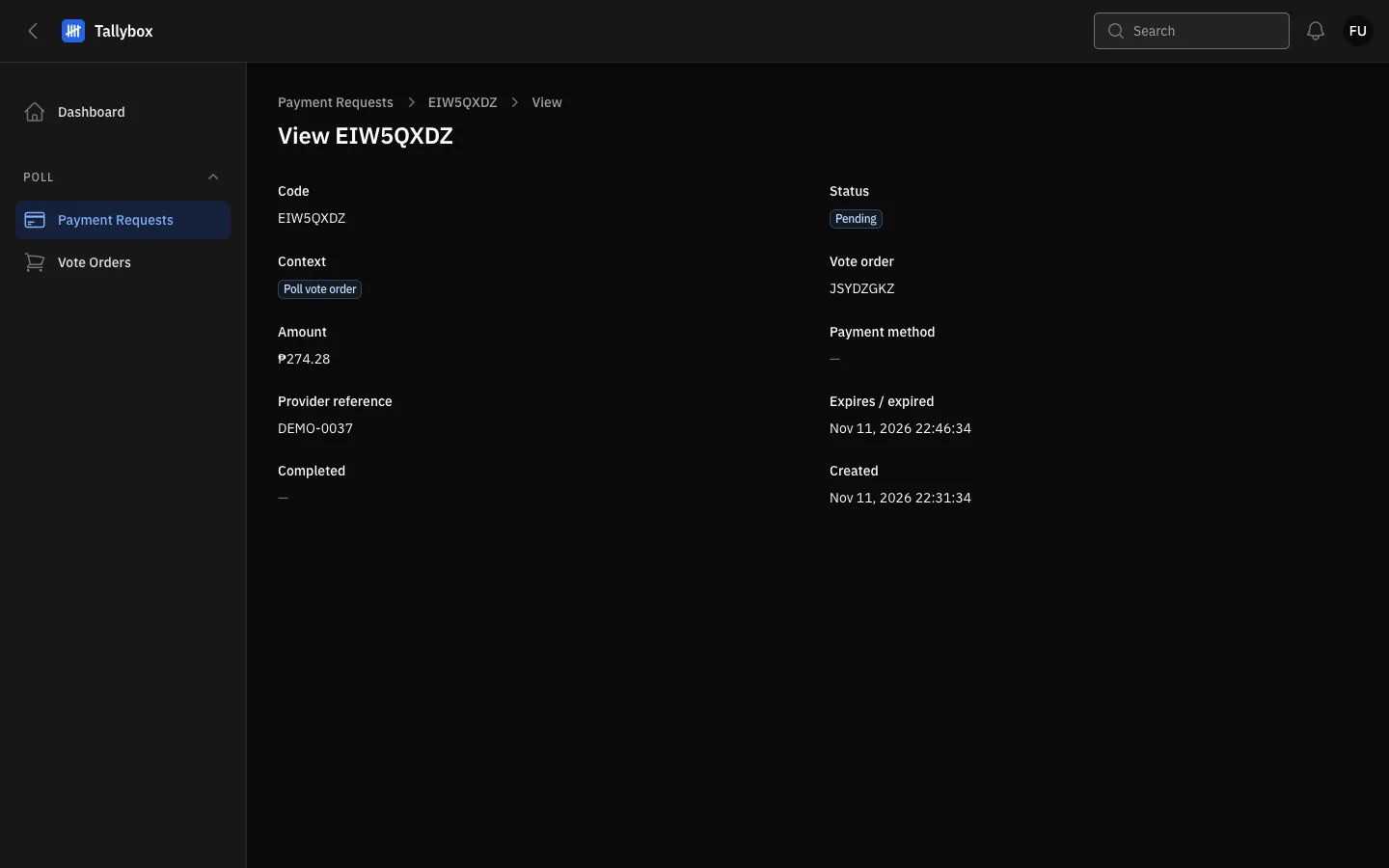
- Status of this attempt.
- Vote order: choose it to open the order.
- Expires / expired: after this time a Pending request is treated as expired.
Re-check a pending payment
Use this when a voter says they paid but the order is still Pending. It asks the payment provider what happened. If the answer is final, the request is settled, and a completed payment counts its votes.
- Find the Pending requestFilter Status to Pending. The Re-check with gateway link shows only on Pending requests.
- Choose Re-check with gatewayIt is on the row, and also at the top of the request page.
- Choose Confirm in the message
- Read the notificationIt says "Gateway status:" and the answer. If the answer is not final yet, it adds "Not final yet, so nothing changed." Try again later.
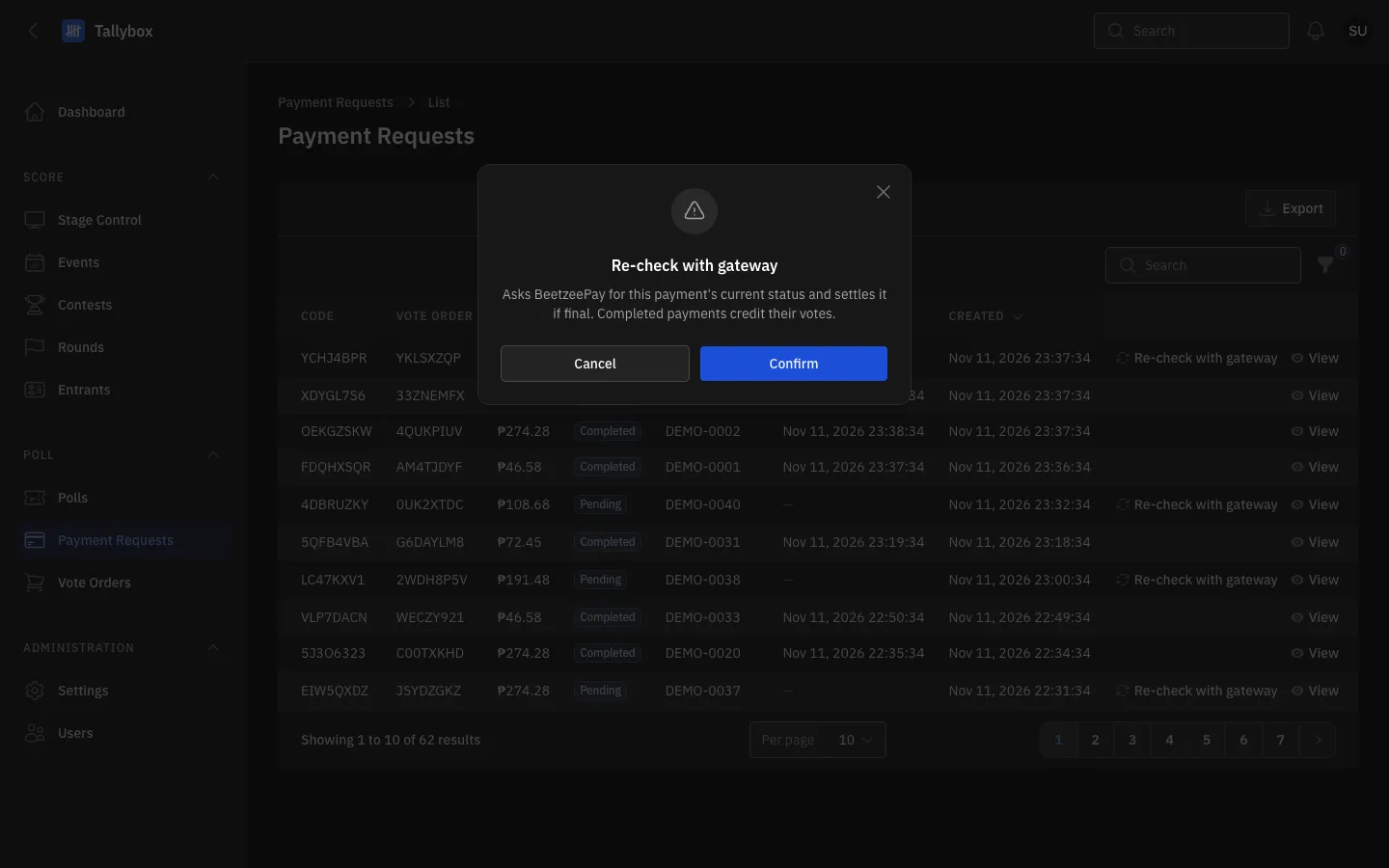
- Re-check with gateway: the link on a Pending row. Hidden from Finance.
- What the check does.
- Cancel: closes the message and asks nothing.
- Confirm: contacts the payment provider.
Export the list
- Filter or search first, if you only want some requestsThe file holds exactly the rows the list is showing.
- Choose Export above the table
- Wait for the notification with the download link
The spreadsheet has one row per request: code, vote order, amount, status, payment method, provider reference, and the expired, completed and created times.