Read the dashboard
The Dashboard is the first page you see. It shows what needs you right now. Each role sees its own set of cards.
Who can do thisSuper AdminAdminModeratorOperatorAuditorTabulatorViewerFinance
Open it any time with Dashboard at the top of the left menu. What you see depends on your role, so the lists below say who sees each card. The picture shows a Super Admin, who sees them all.
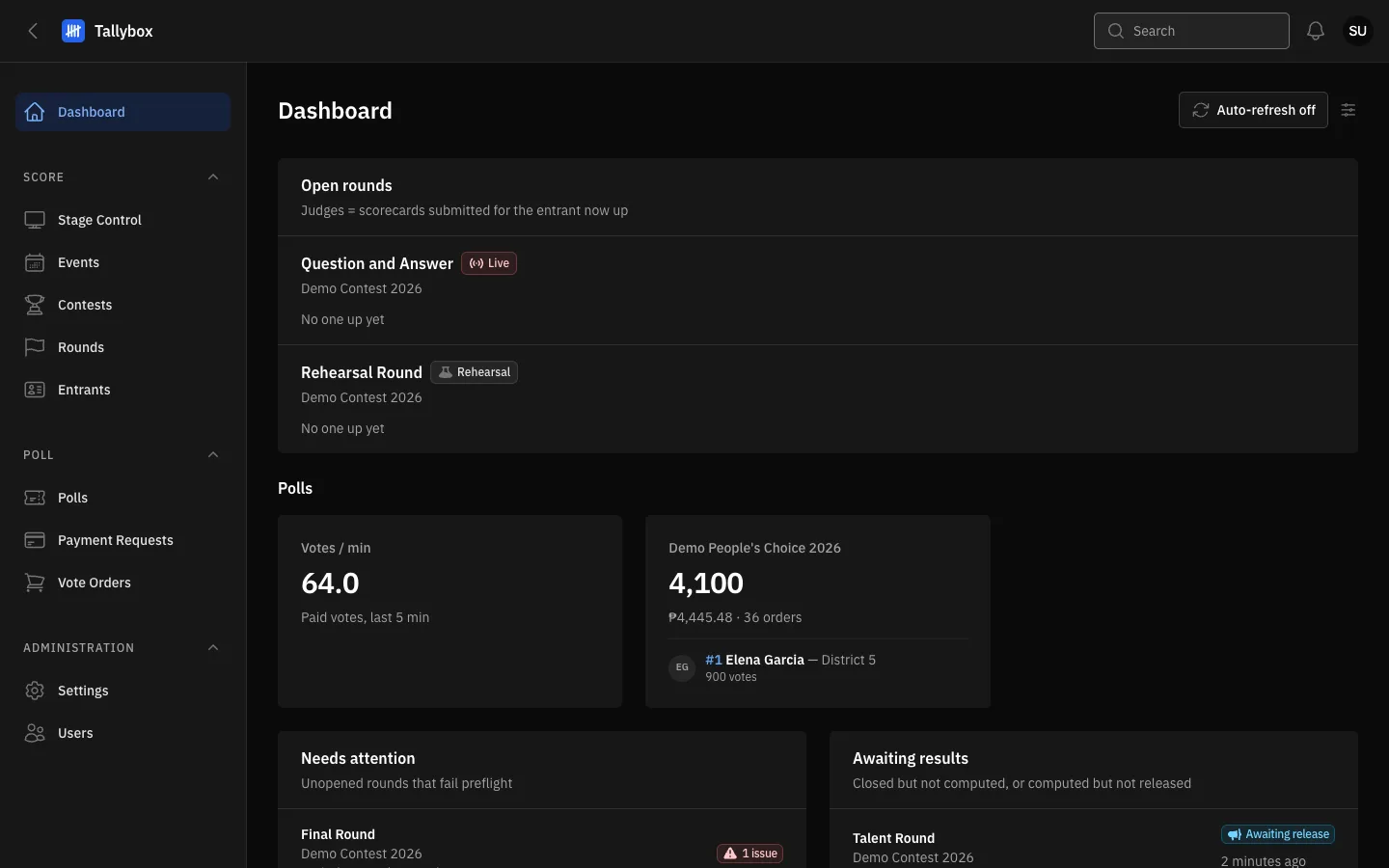
- Auto-refresh: turns automatic updating of the cards on or off.
- Refresh intervals: how often the cards update (Super Admin only).
- Open rounds: rounds that are being scored now.
- Polls: public voting figures.
- Needs attention: rounds with a problem to fix.
- Awaiting results: rounds that are scored but not yet released.
Cards about rounds
- Open rounds. Each round that is open for scoring, with a Live or Rehearsal tag. It shows who is up now and how many judges have submitted a scorecard for that entrant.
- Needs attention. Rounds that are not open yet but would fail the checks Tallybox runs before opening. The red tag counts the problems. Open the round to fix them. See Respond to the Needs attention list and the glossary.
- Awaiting results. Rounds that are closed but not computed yet, or computed but not released. See Results.
- Upcoming. Rounds scheduled soon, so you can see what is next.
Cards about public voting
- Polls. Votes per minute, and for each open poll its total votes, money taken and current leader.
- Paid votes, last 24 hours. A chart of votes hour by hour.
- Paid votes by location. A pie chart of where votes come from. Use the list at its top right to narrow it.
- Revenue, all time. Gross, convenience fees, processing fees and the number of paid orders.
- Payment problems. Payments that are still pending after 15 minutes, or that failed or expired in the last day.
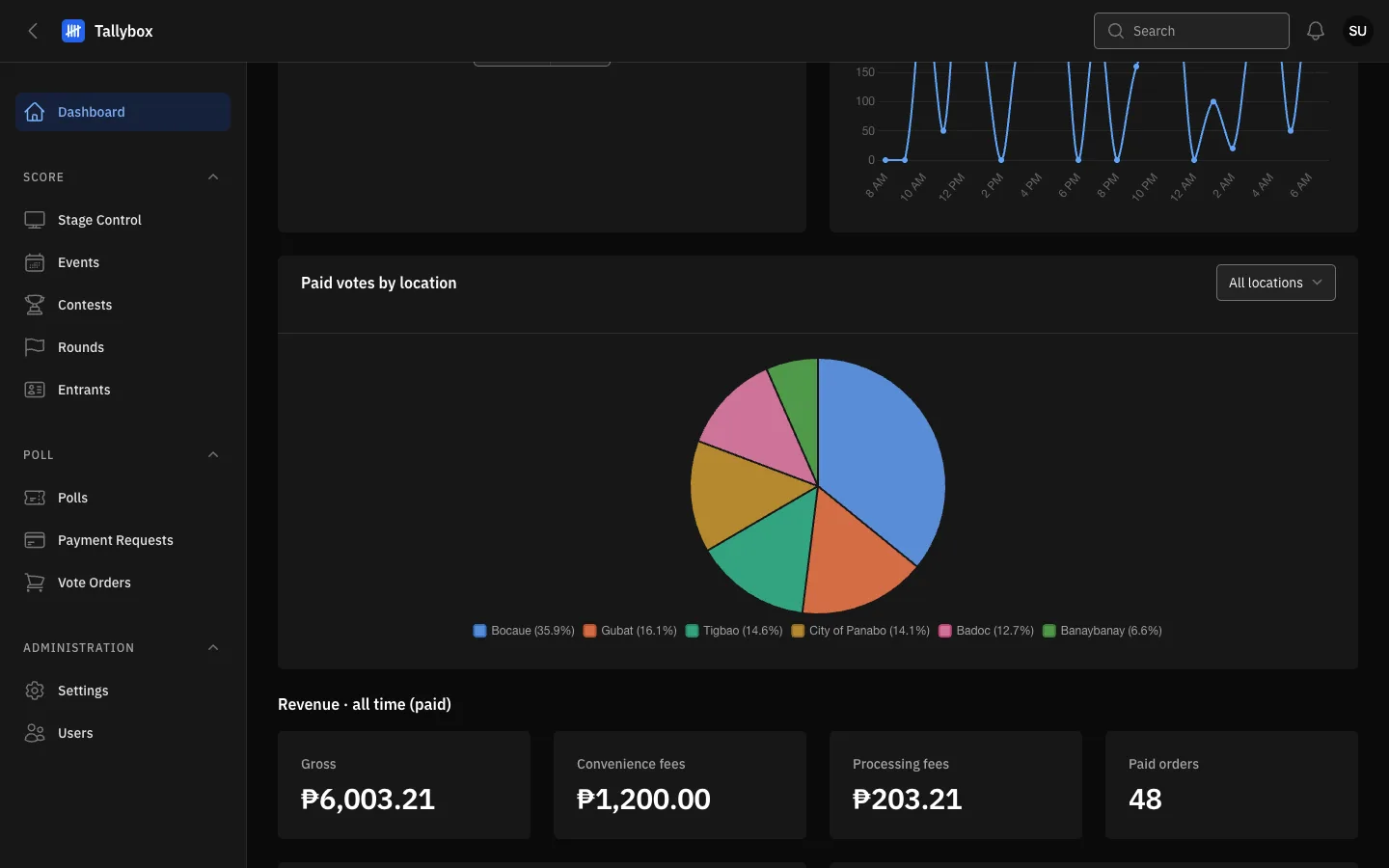
- Paid votes by location.
- Revenue: gross, fees and paid orders.
The detail behind these cards is in Watch voting activity and revenue.
Sensitive actions
Shows the latest 10 important actions, such as releasing a round's results, with who did them and when. Use it to see that nothing unexpected has happened.
Stage Control card
If your role is Operator, the Dashboard has one card: Open Stage Control. It takes you to the page that drives the projected stage screen. See Run Stage Control.
If your Dashboard is empty
Finance has no cards here. Your work is in Vote Orders and Payment Requests in the left menu.
Keep the cards fresh
- Choose Auto-refresh off at the top rightIt changes to Auto-refresh on, and a small countdown appears on each card.
- Choose it again to switch automatic updating offUseful when you want a page to stay still while you read it.
With Auto-refresh off, the cards show what was true when the page opened. Reload the page to update them.
Change how often cards refresh
- Choose the small settings button next to Auto-refreshIt is named Refresh intervals. Only a Super Admin sees it.
- Set Live widgets and Other widgetsLive widgets are Open rounds and Polls. Other widgets are the rest. Each takes 5 to 300 seconds.
- Choose Save
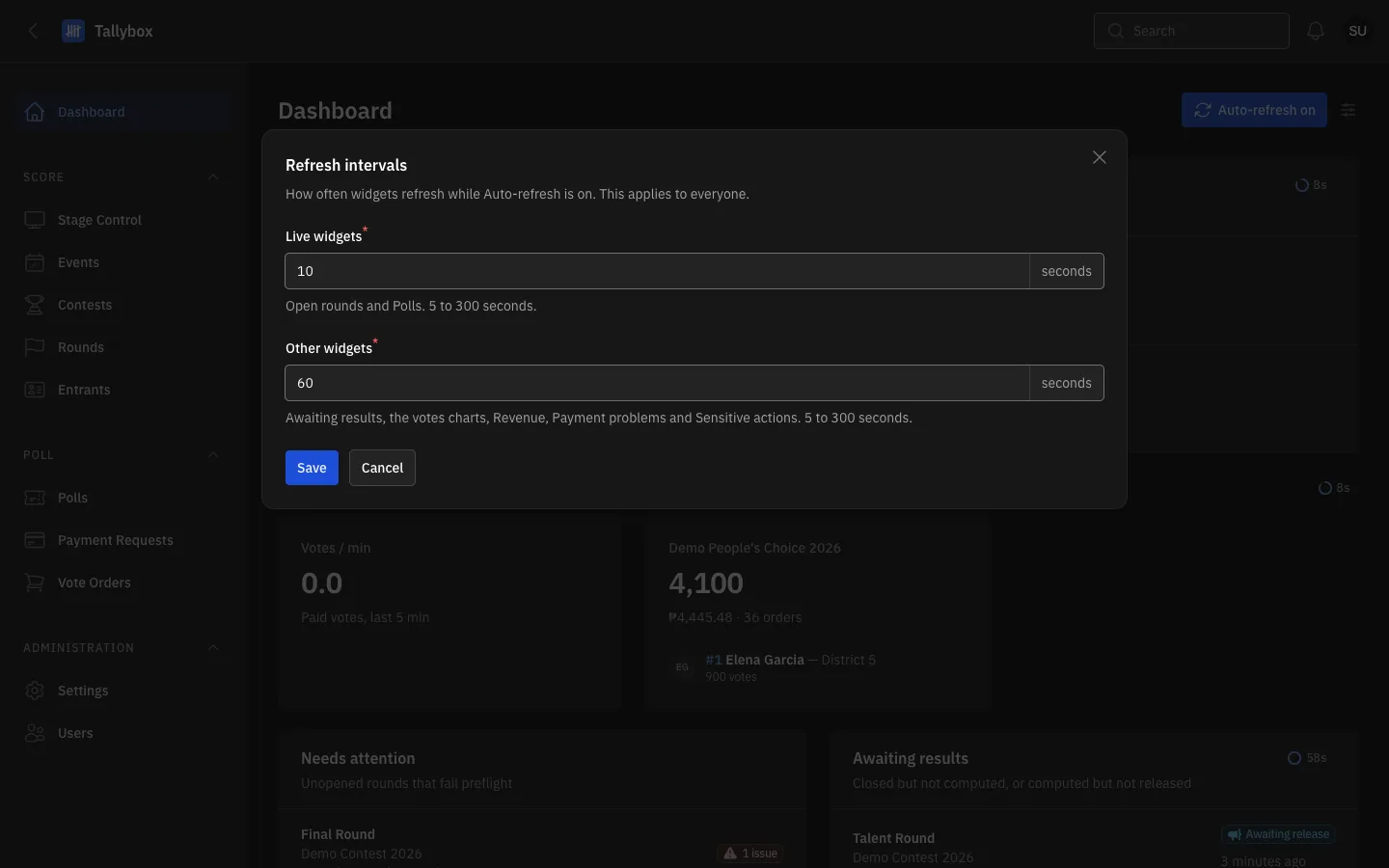
- Live widgets: Open rounds and Polls. 5 to 300 seconds.
- Other widgets: everything else on the Dashboard. 5 to 300 seconds.
- Save.