Guide 2.7
Create and manage rounds
A round is one stage of a contest where judges score the entrants. Create the rounds first, then fill each one with criteria, judges and entrants.
Who can do thisSuper AdminAdminModeratorAuditorTabulator
A round belongs to one contest. A contest usually has a few: for example a preliminary round, a talent round and a final. Open Rounds in the Score menu to see them all.
Find a round
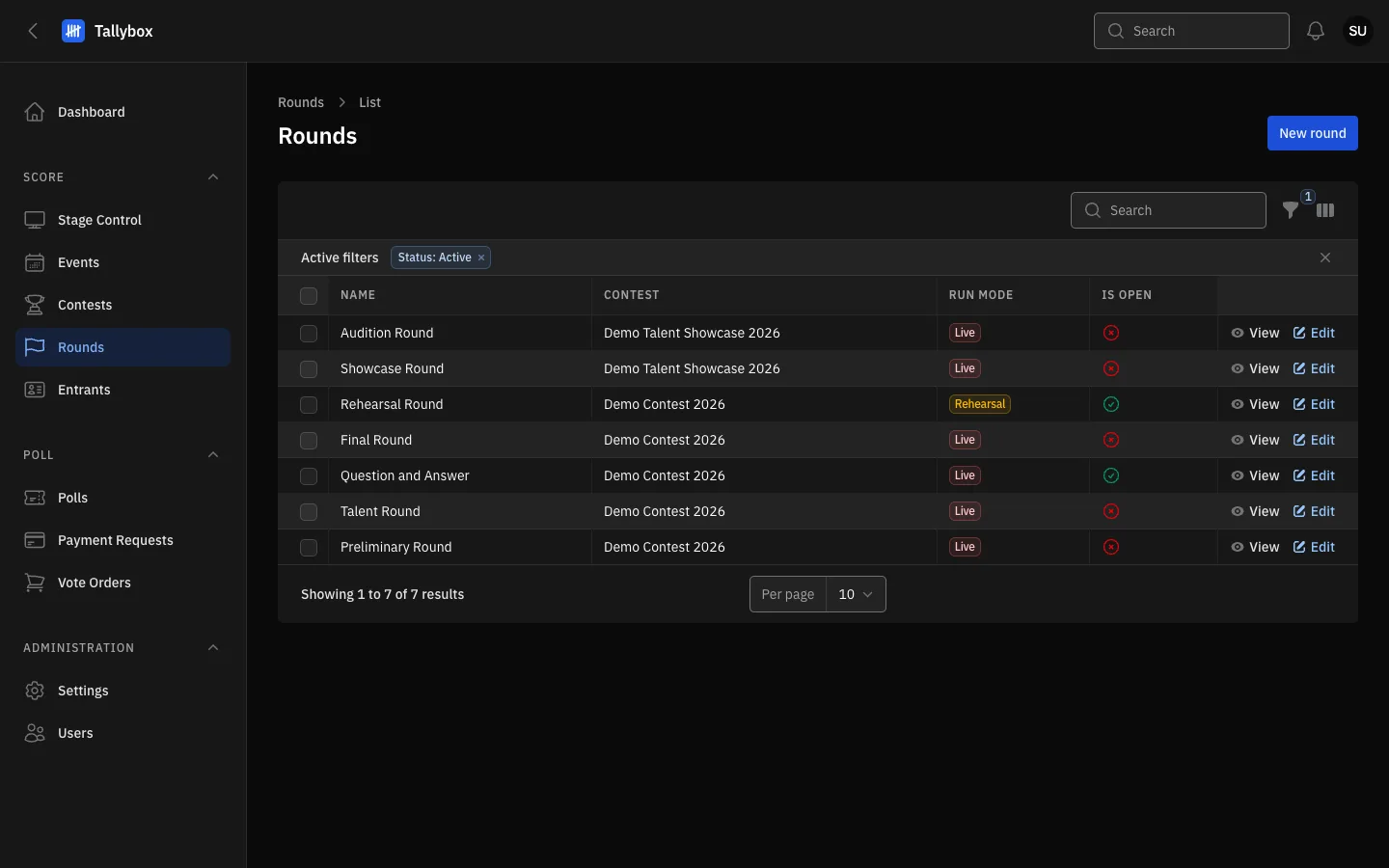
- New round: opens the form to create a round. Admins only.
- Filters: the list shows only active rounds until you change this. Use Search to find a round by name.
- Run mode: Live counts for real, Rehearsal is for practice.
- View opens the round to read it. Edit opens it to change it, and is for Admins only.
Moderators, Auditors and Tabulators can open any round to read it, but only Admins can change one. A Tabulator sees only the rounds they have been crewed on.
Create a round
- Choose Rounds in the Score menu, then New round
- Pick the Contest and type a NameThese two are required. Everything else has a sensible starting value.
- Fill in the sections you needBasics, Composition, Scoring, Judging window, and Advancement and carry. Short help text sits under each field.
- Choose Create
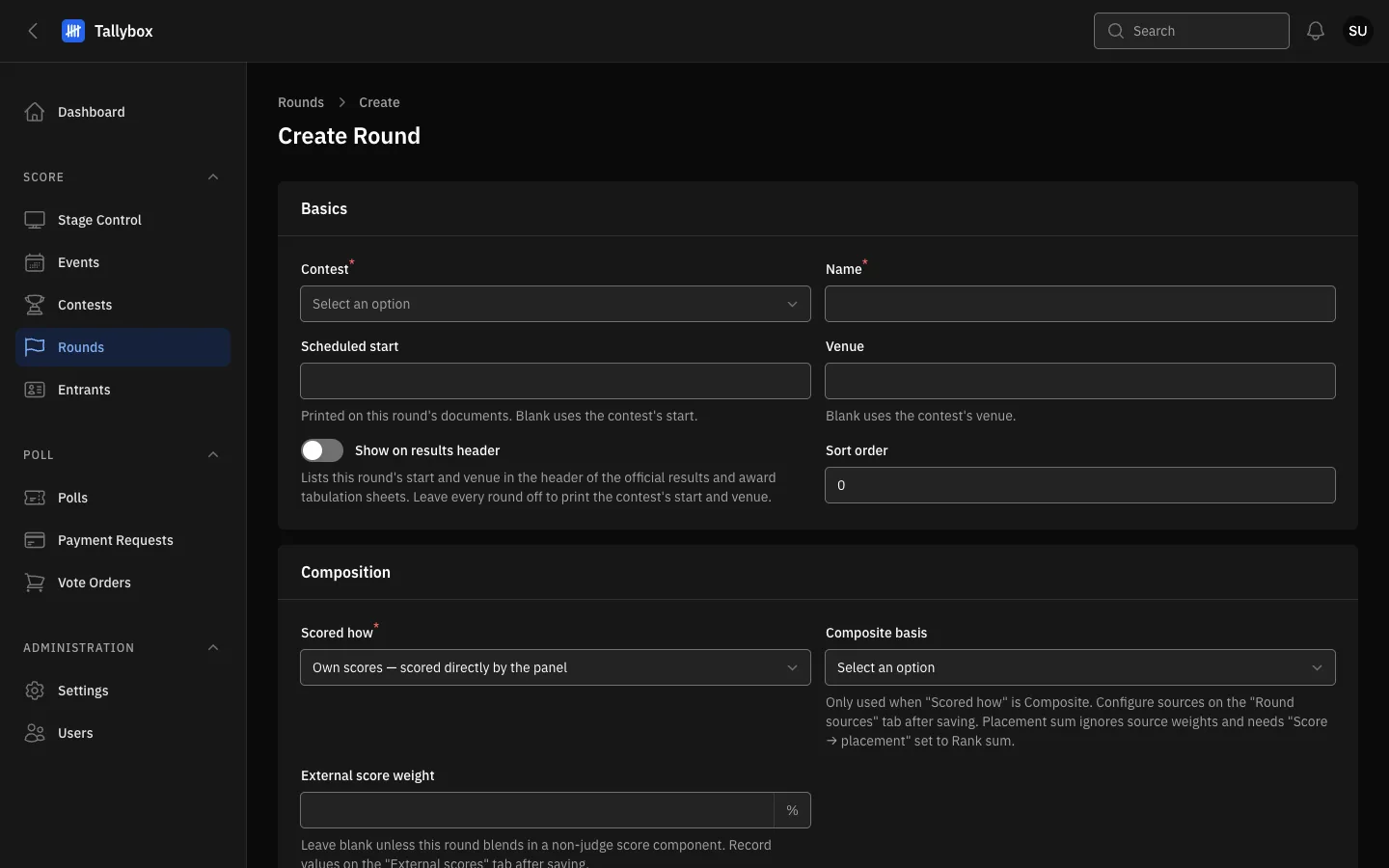
- Contest: the contest this round belongs to. Required.
- Scheduled start: printed on this round's documents. Leave it blank to use the contest's start.
- Show on results header: lists this round's start and venue on the official results. Leave every round off to print the contest's own.
- Scored how: judges score this round directly, or the round is built from the results of earlier rounds.
- Basics names the round, says when and where it starts, and sets its order in the contest.
- Composition says whether the panel scores this round directly or whether it is built from other rounds.
- Scoring sets how criteria become a judge's score, how judges become an entrant's score, and how scores become placements.
- Judging window picks the scoring mode: one entrant at a time led by staff, or judges moving at their own pace (booth judging).
- Advancement and carry says who continues to the next round and whether scores carry over from an earlier one.
A new round is empty. After you create it, add its criteria, judges and entrants from the tabs on the round's Edit page. See Configure what a round scores and Put entrants into a round.
What you can do from a round
Choose View on a row to open the round. The Actions menu at the top right holds everything you can do to it.
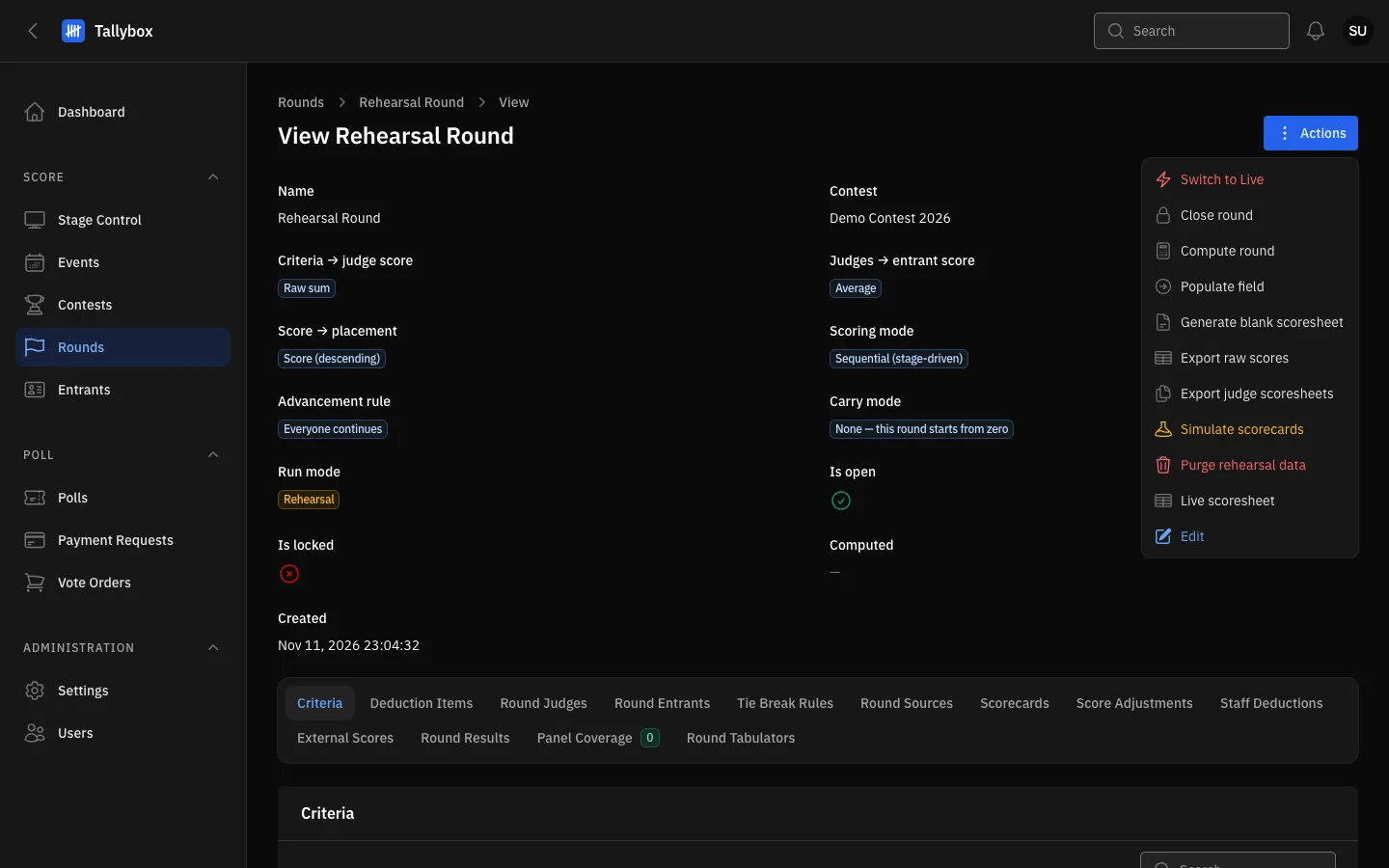
- Actions: the menu of everything you can do to this round.
- Switch to Live: turns a rehearsal round into a live one. Shows only on rehearsal rounds.
- Populate field: fills the round with entrants. See Put entrants into a round.
- Edit: opens the round for changes. Admins only.
The menu changes with the round's state and with your role:
- Open round shows only while the round is closed. Close round shows only while it is open.
- Compute round becomes Recompute round once the round has results. Release results shows only for a computed round that is not yet released, and Unrelease results only for a released one.
- Switch to Live, Simulate scorecards and Purge rehearsal data are for rehearsal rounds. The last two are for Super Admins. See Run a rehearsal and clear it afterwards.
- The printing and export items are for Admins, Auditors and Tabulators.
Change or delete a round
- Open the round and choose Actions, then EditYou can also choose Edit on its row in the list.
- Change what you need and choose Save changesThe round's tabs sit under the form on the same page, and each one can be edited there.
- To remove the round, choose Actions, then DeleteTo remove several from the list, tick their boxes and choose Delete selected under Bulk actions.
Some rounds cannot be deleted. If an award or a results page depends on the round, Delete is greyed out and a tooltip says why. Remove or change that award first.
Released rounds are locked. Once a round's results are released it is locked and its set-up can no longer be changed. Unrelease the results first if you must.