Create and manage polls
A poll is a public vote where people pay to vote for entrants. Create one, check its details, and switch it on or off.
Who can do thisSuper AdminAdminAuditor
A poll belongs to one event. It has its own entrants, its own vote bundles and its own results. A Super Admin or an Admin can create, change and delete polls. An Auditor can open the list and the View page to read, but cannot change anything.
Find a poll
- Choose Polls in the Poll menu on the left
- Read the Status and Accepting votes columnsStatus says Open or Closed. Accepting votes shows a green tick only while voters can really buy votes right now.
- Use the Search box or the filter button to narrow the list
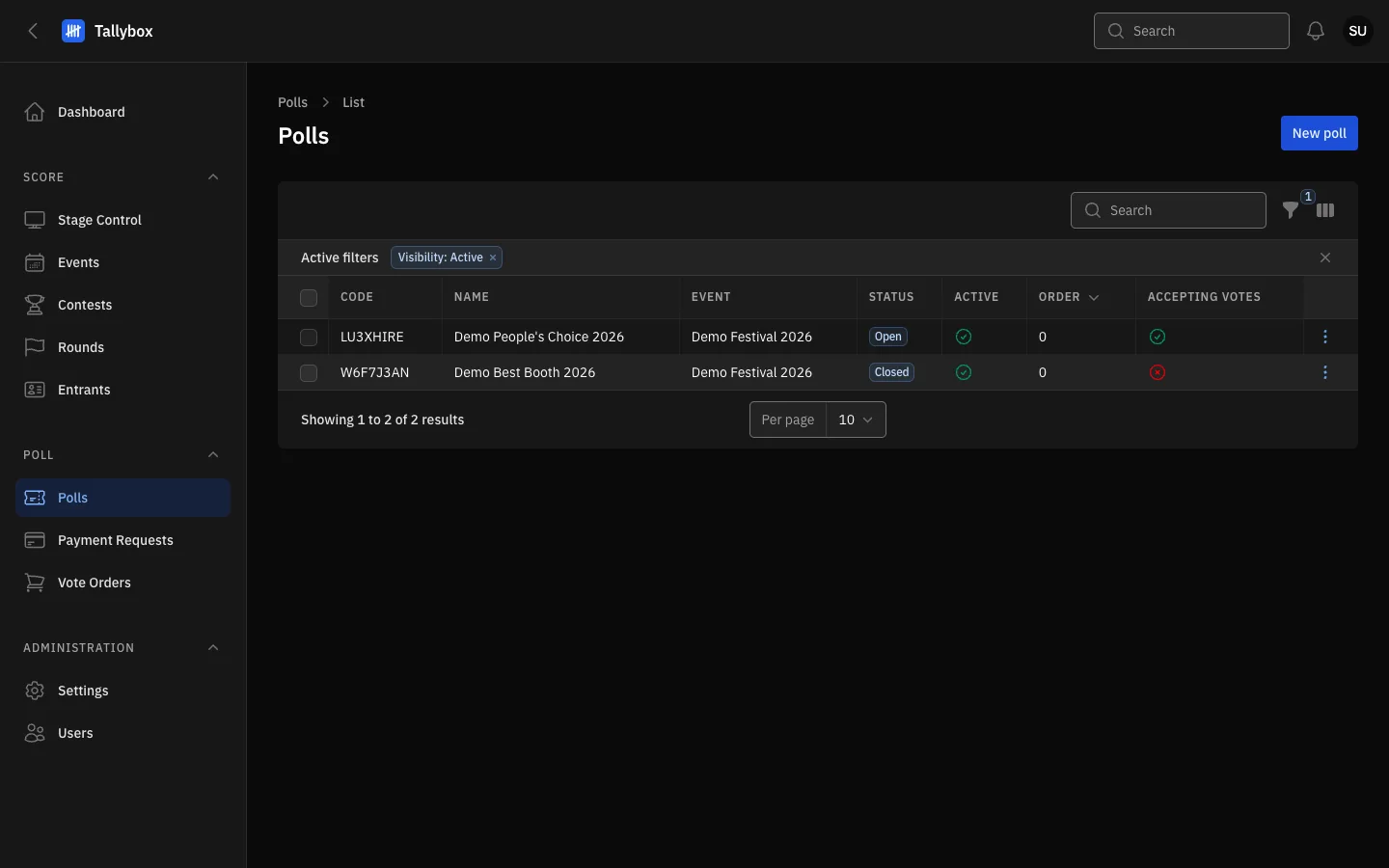
- New poll: starts a new poll. Super Admin and Admin only.
- Visibility: Active filter. The list starts with active polls only. Remove the chip to see deactivated ones too.
- Accepting votes: a green tick means voters can buy votes right now.
- Row menu: View, Edit, and Activate or Deactivate.
Create a poll
- Choose New poll at the top of the list
- Pick the Event and type a NameBoth are required.
- Optional: pick a Linked contestVoters then see that contest's own word for its entrants, such as Contestant.
- Fill in the schedule and fees only if you need themLeave Opens and Closes empty to run the poll with the Open poll and Close poll buttons alone. Blank fee boxes use the event's fees, then the system default.
- Choose Results visibility, then CreateThe default is Hidden, which means no public standings.
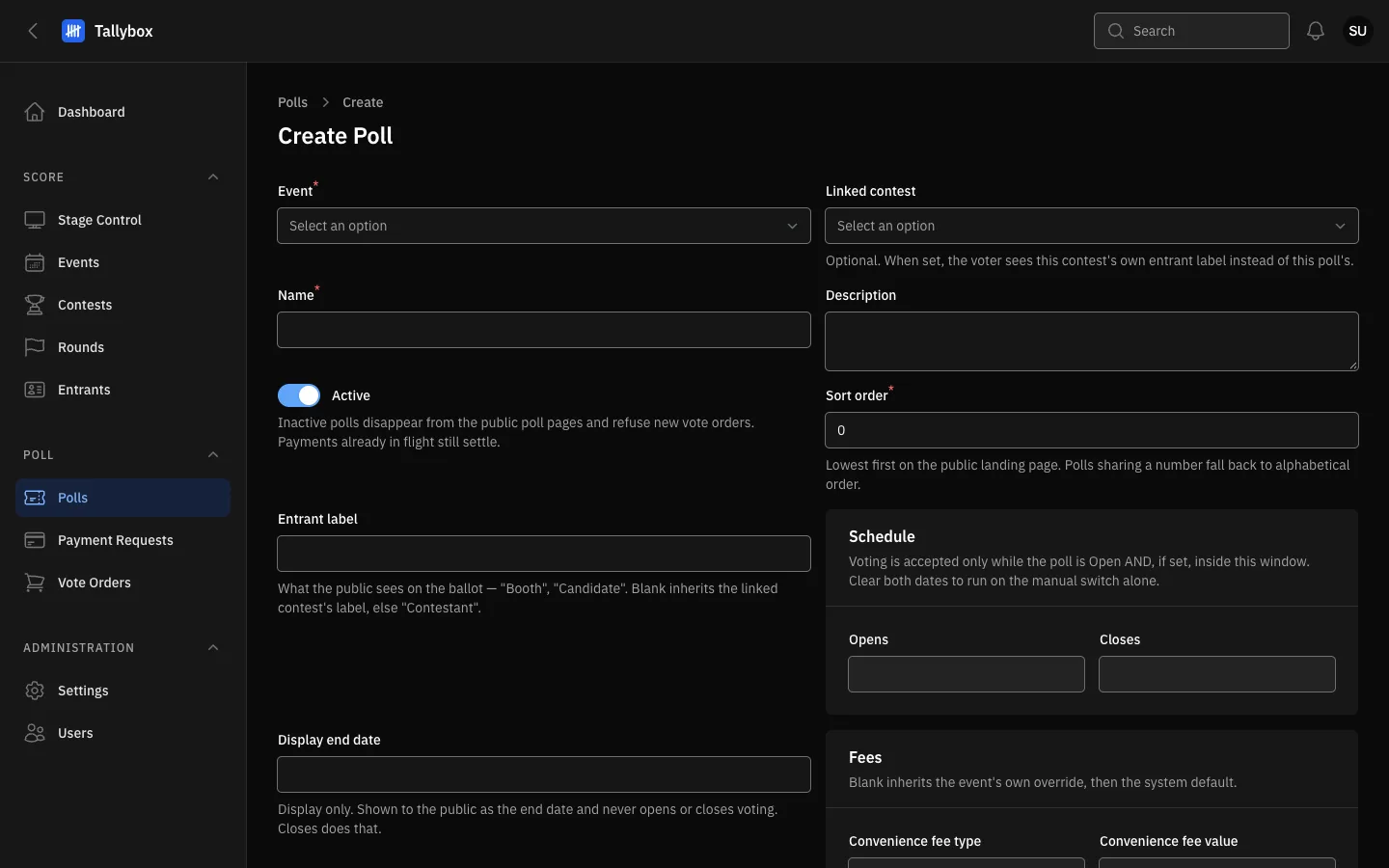
- Event: required. A poll belongs to one event.
- Linked contest: optional.
- Active: an inactive poll disappears from the public poll pages and refuses new vote orders. Payments already in progress still finish.
- Schedule: voting is accepted only while the poll is Open and inside this window, if you set one.
Further down the form are the Fees box, the Standings broadcast box, Results visibility and Entrant display order. Each has a short note under it that explains what it does. Most polls only need the top of the form. A new poll starts Closed, so open it when you are ready: see Open and close a poll.
After you create a poll, add its entrants and bundles. See Add, disqualify and reactivate poll entrants and Set up vote bundles.
Read, edit and delete a poll
- On the list, open the row menu and choose View
- Read the Details tabIt shows the event, the linked contest, the status, the schedule, who closed the poll and when.
- To change anything, choose Edit at the top right, then Save changes
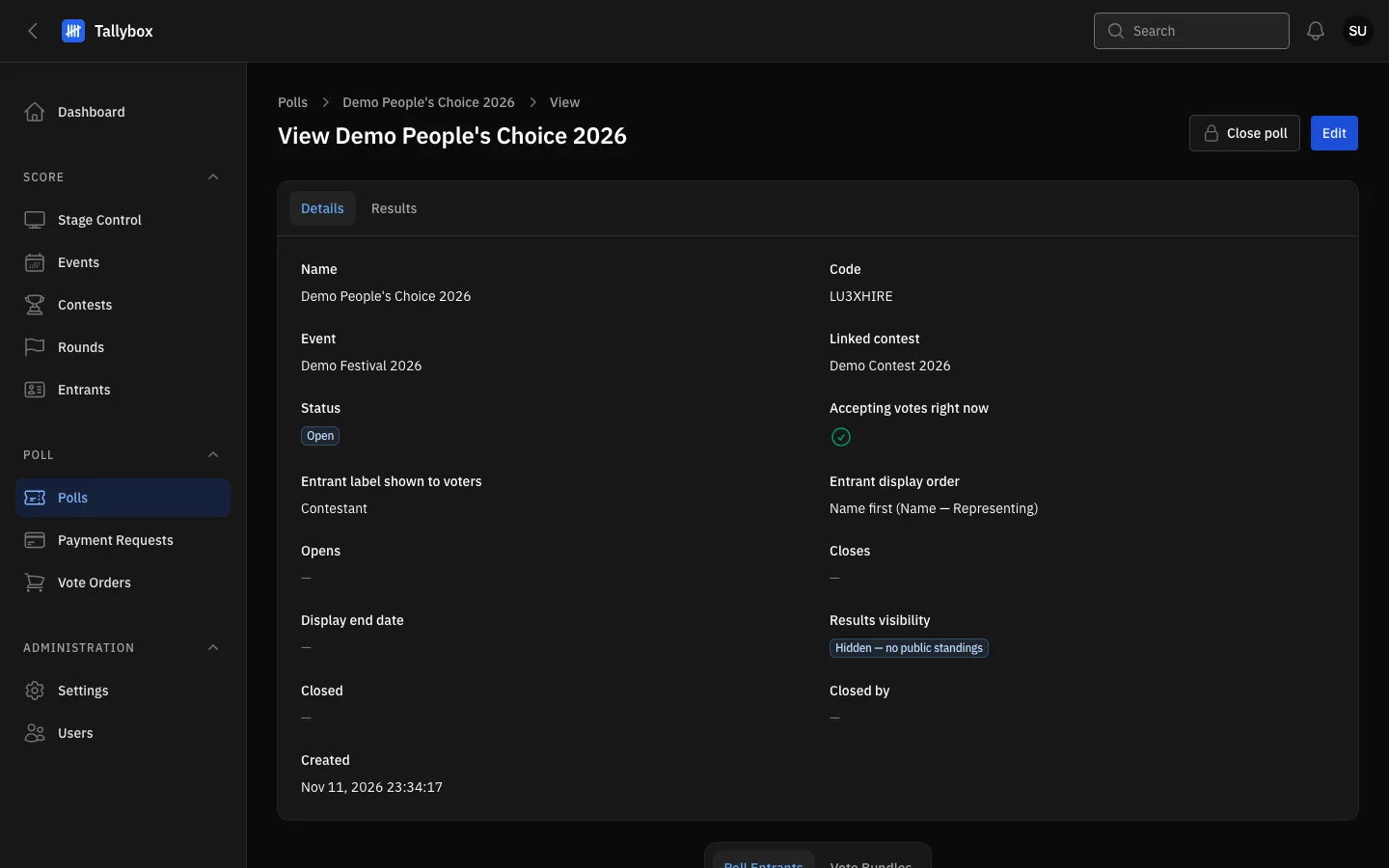
- Close poll: appears only while the poll is Open. A closed poll shows Open poll instead.
- Edit: Super Admin and Admin only.
- Results tab: live standings. Hidden from Auditors.
- Accepting votes right now.
The Edit page has the same form as New poll. It also has View and Delete buttons at the top. Delete removes the poll for good, so use Deactivate instead if you may need it again.
Switch a poll on or off
- On the list, open the row menu and choose DeactivateThe menu shows Activate instead for a deactivated poll.
- To change several polls at once, tick their boxes and use Bulk actions
Bulk actions also offer Delete selected. A deactivated poll leaves the public pages and refuses new votes, but nothing is lost.