Create and manage contests
A contest is one competition inside an event, such as a talent show. It holds the rounds, the entrants, the awards and the results pages.
Who can do thisSuper AdminAdminModeratorAuditorTabulator
A contest belongs to one event. Choose Contests in the menu on the left, under Score. Tabulators only see the contests they are crewed on.
The Contests list
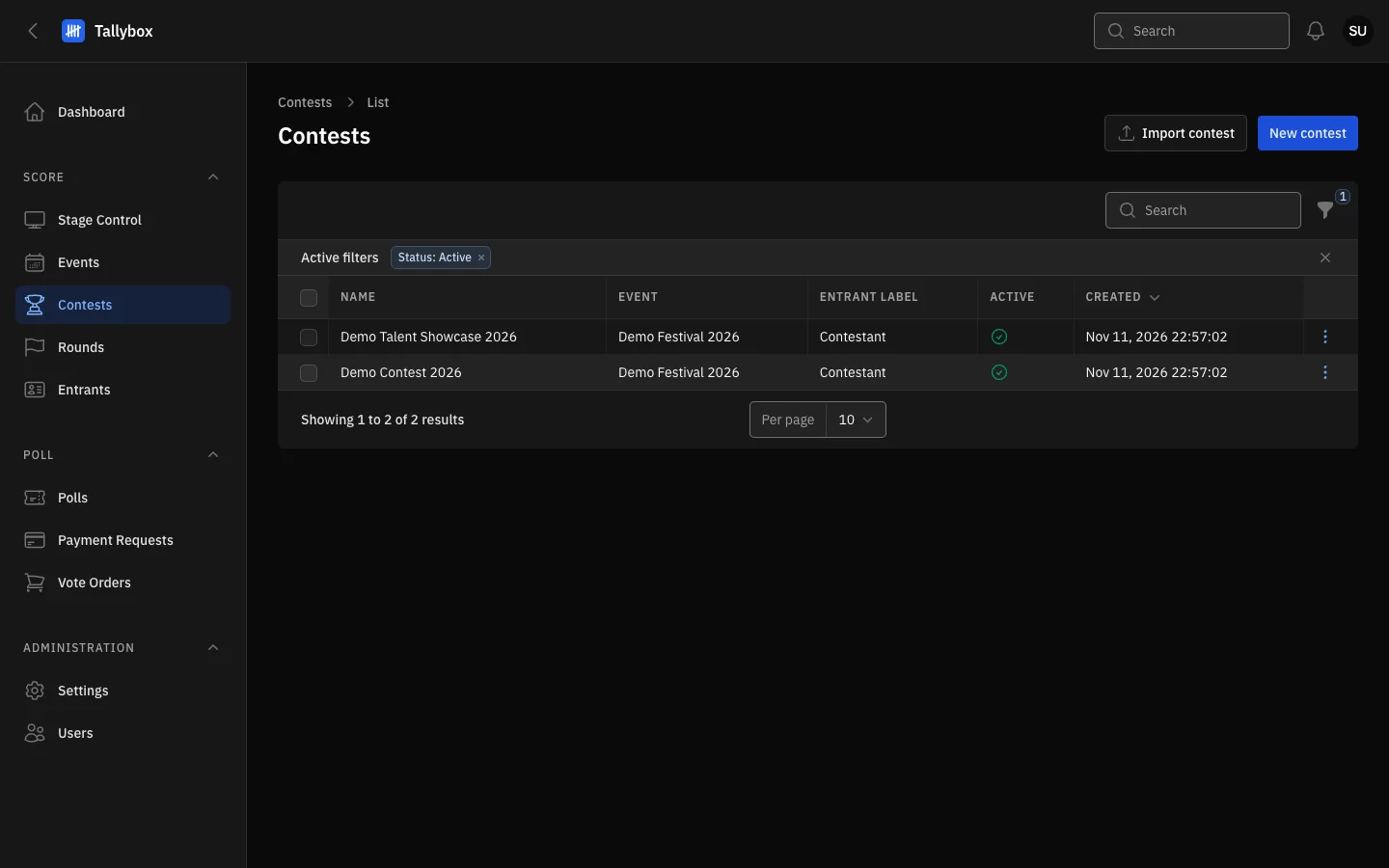
- Import contest: brings in a contest from a bundle file. Super Admin only (see Export and import a contest).
- New contest.
- The list shows active contests only at first. Remove this filter to see switched-off ones.
- Row menu: View, Edit, Export contest, and Activate or Deactivate.
Create a contest
- Choose New contest
- Pick the Event it belongs to, and type the contest Name
- Type the Entrant labelThis is what the contest calls the people or things being judged, such as Contestant, Team or Booth. It appears across the panel.
- Set the scheduled start, and the number of decimal places for scores
- Choose Create
Open a contest
Choose View in a row. The page shows the contest's details, then three tabs: Awards, Results pages and Contest Tabulators. At the bottom is the Live coverage panel.
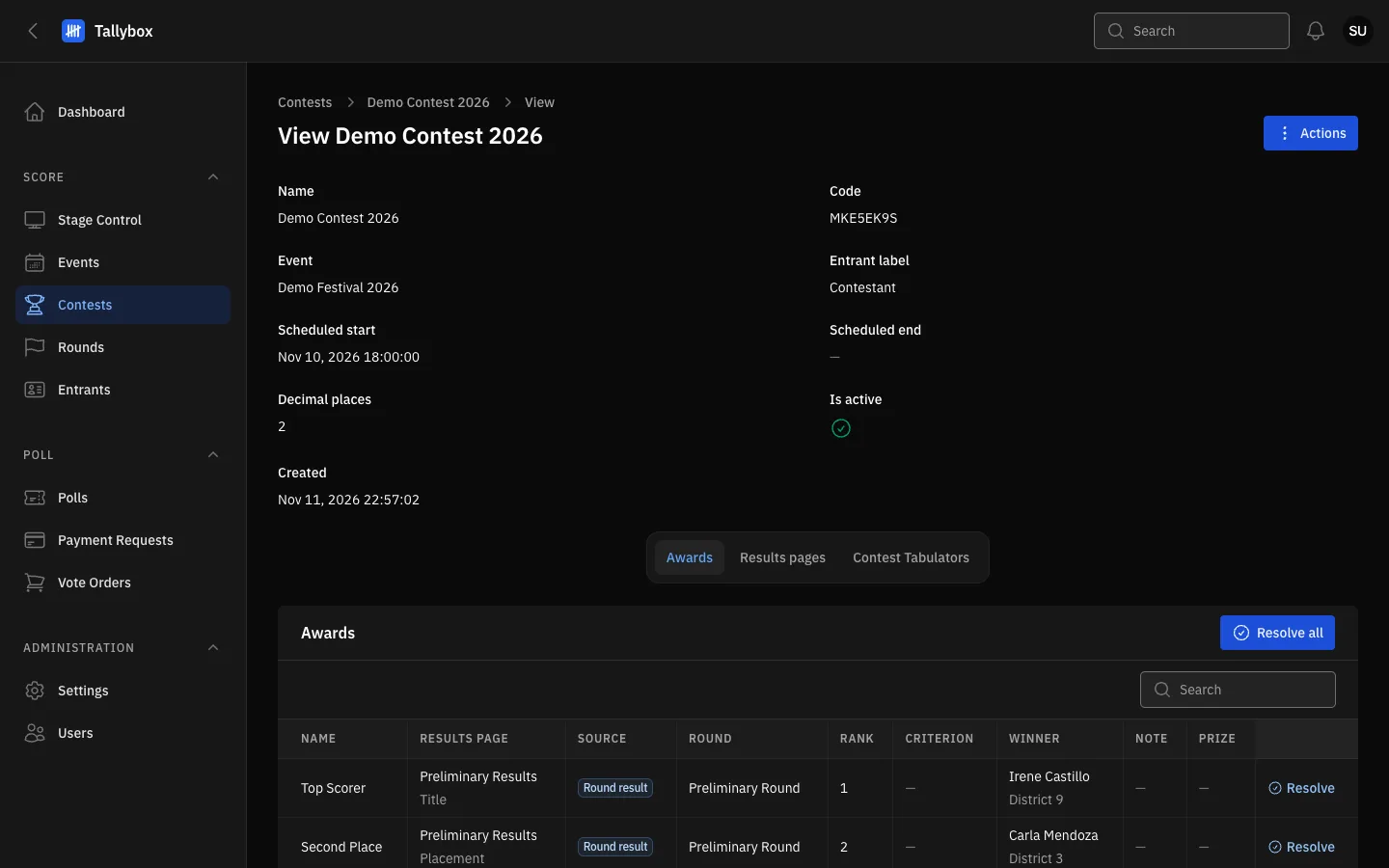
- Actions: the menu of things you can do with this contest.
- Awards tab.
- Results pages tab.
- Contest Tabulators tab.
The Actions menu
What you see in the menu depends on your role.
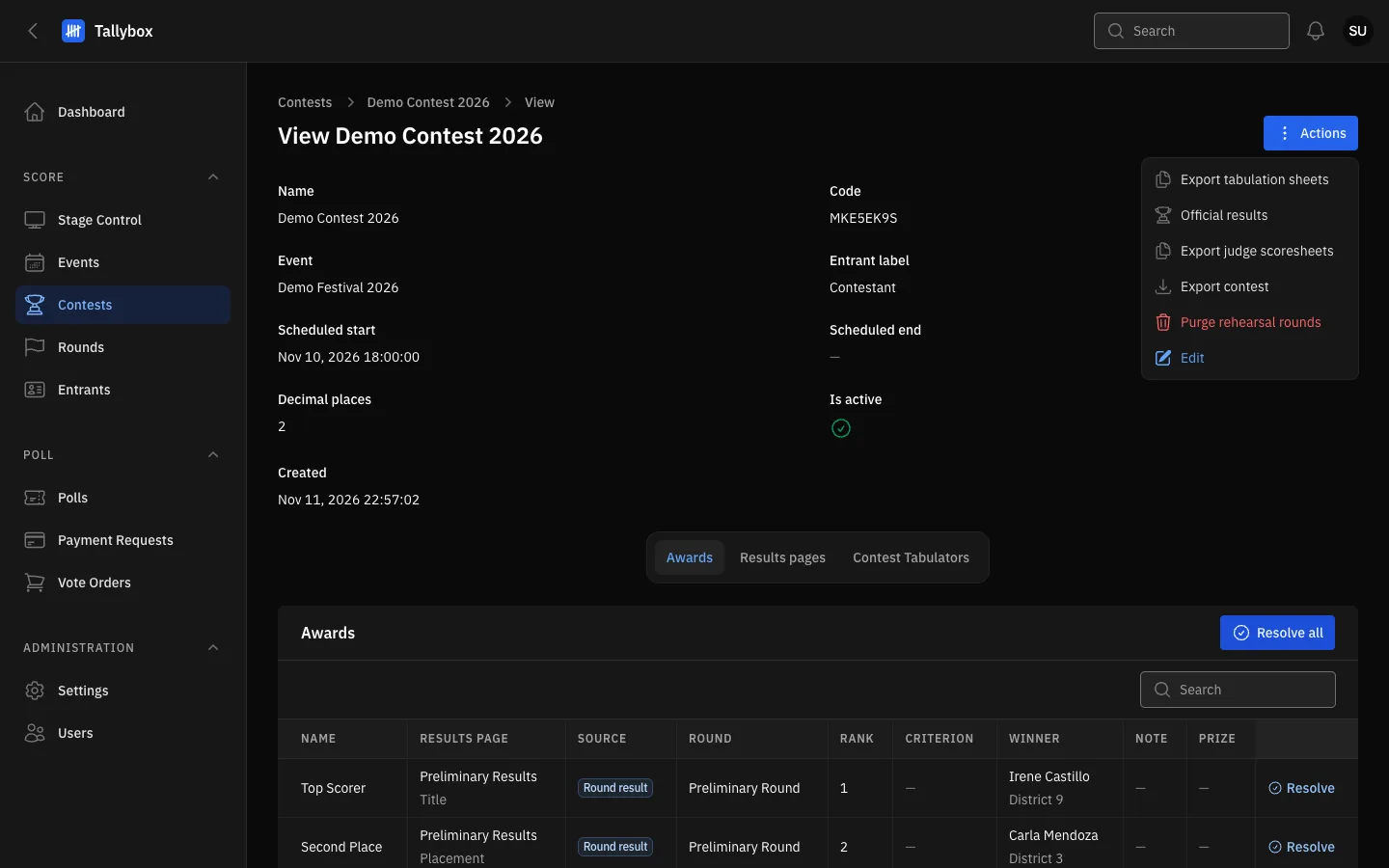
- Export tabulation sheets: prints the sheets for every computed round and resolved award.
- Official results: downloads the official results document.
- Export judge scoresheets: downloads the judges' scoresheets.
- Export contest: saves the contest as a bundle file (see Export and import a contest).
- Purge rehearsal rounds: Super Admin only (see Run a rehearsal and clear it afterwards).
- Edit: change the contest's details.
- Auditors and Tabulators see only the three document items: Export tabulation sheets, Official results and Export judge scoresheets. They are explained in Print and export results.
- Admins also get Export contest and Edit.
- Super Admins also get Purge rehearsal rounds.
- Moderators see no Actions menu at all. They can open the contest and use Live coverage only.
Live coverage
This panel at the bottom of the contest page shows, as judges score, who has scored what. It is what you watch on the night (see Check that every judge is scoring). It is the only part of the contest page a Moderator sees. A Tabulator sees it only when crewed on every round of the contest.
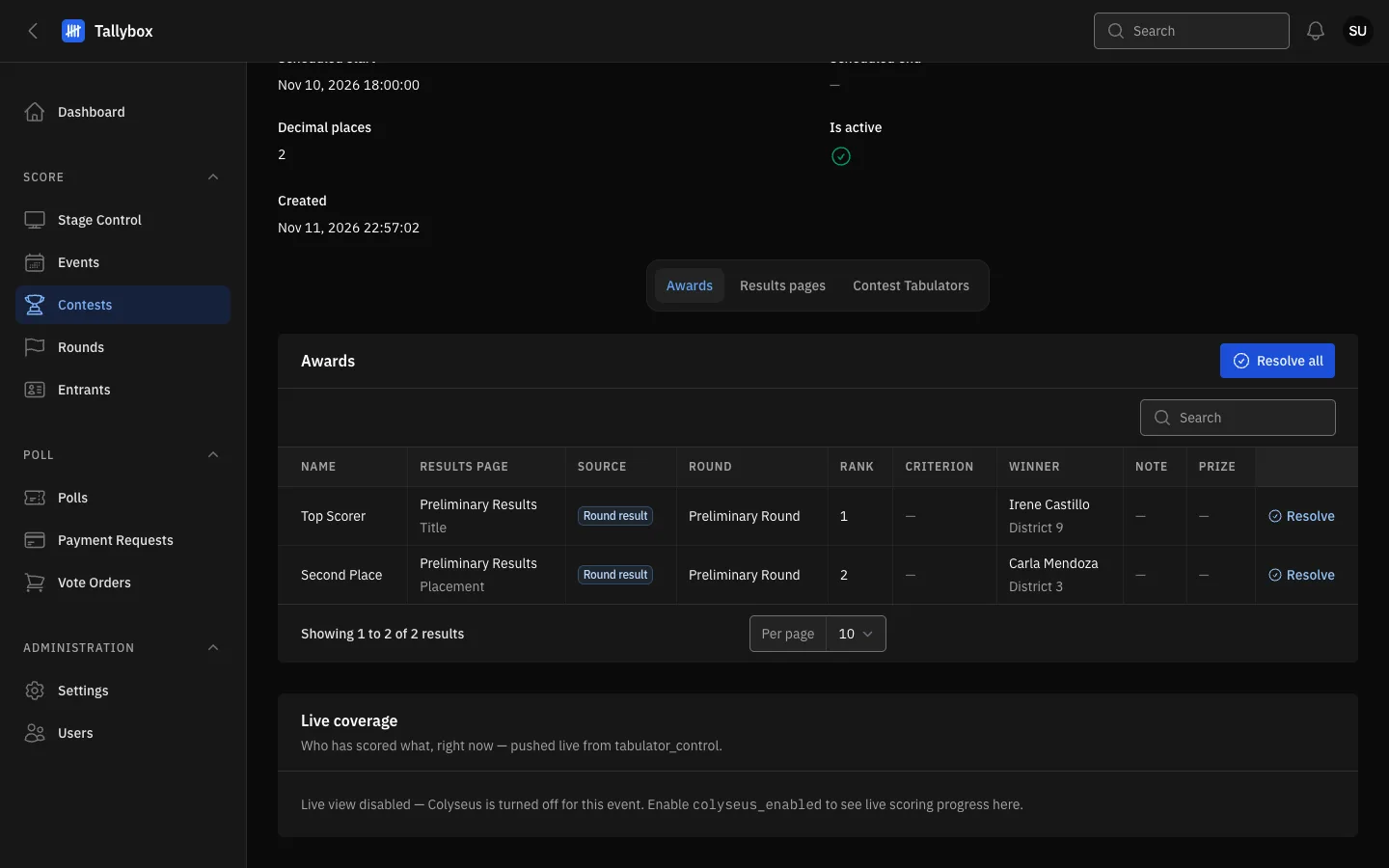
- Live coverage panel.
- This notice appears when live scoring is switched off for the event. Ask a Super Admin if you expect to see progress here.
Edit, switch off or delete
- Edit: in the row menu, or in the Actions menu on the contest page. It has the same fields as creating a contest.
- Deactivate or Activate: in the row menu. To change several contests, tick their rows, open Bulk actions and choose Activate or Deactivate.
- Delete: in the menu at the top of the Edit page. Delete selected is in Bulk actions.