Sign in and find your way around
Sign in to the Tallybox panel, learn what the menu on the left and the menu at the top right do, and learn how to use this manual.
Who can do thisSuper AdminAdminModeratorOperatorAuditorTabulatorViewerFinance
Tallybox is where a contest is run from start to finish. Staff set up the event, its contests and rounds, and the entrants. Judges then score each entrant. Tallybox adds the scores up into official placements, and staff release them to the stage screens and the public. This manual follows that order.
Judges do not use this panel. They score on their own page, which an Admin gives them access to (see Give judges access to score).
Sign in
- Open the Tallybox panel address you were givenYou land on the Sign in page.
- Type your email address and your password
- Choose Sign inTick Remember me first if this is your own device and you want to stay signed in.
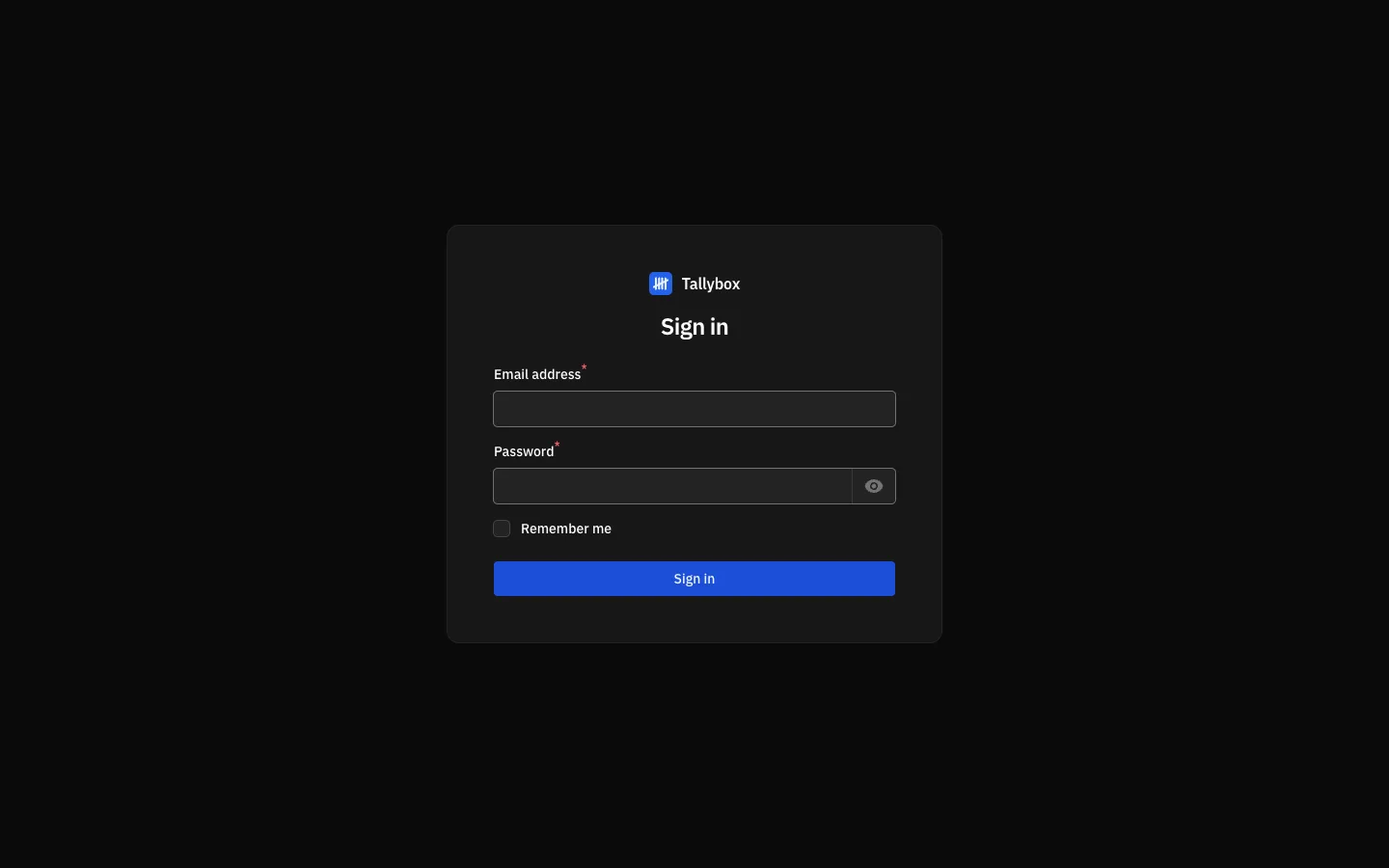
- Email address: the one your Admin set up for you.
- Password. The eye button beside it shows what you typed, so you can check it.
- Remember me: keeps you signed in on this device.
- Sign in.
Find your way around
After you sign in you arrive on the Dashboard. Two menus take you everywhere else.
- Use the menu on the left to go to a pageIt is grouped under Score, Poll and Administration. You only see the items your role can use, so your list may be shorter than the one in the picture.
- Use the search box at the top to jump to a recordType a name, such as a contest or an entrant, and pick the result.
- Choose your initials at the top right to open your user menu
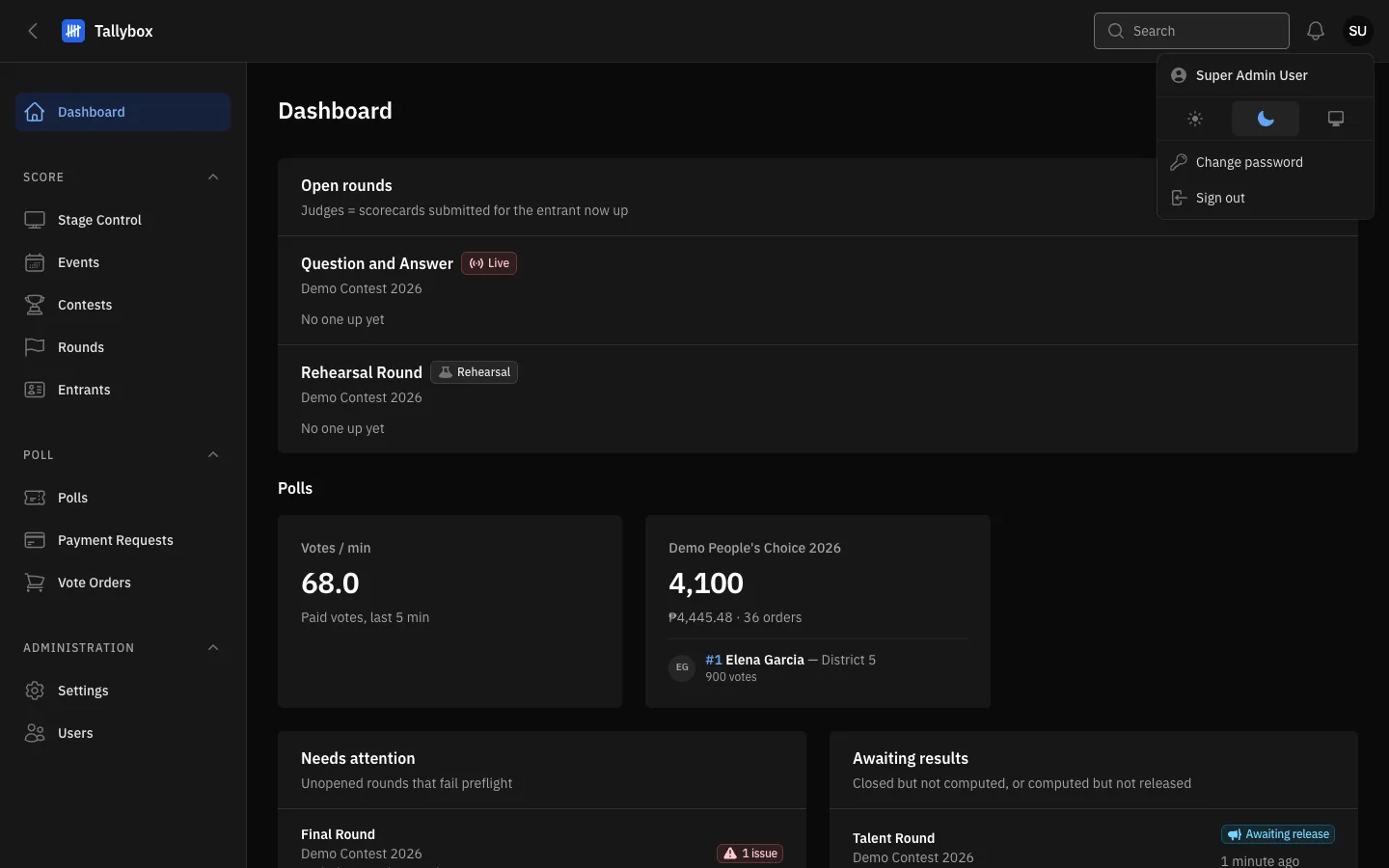
- The menu on the left. Items are grouped under Score, Poll and Administration.
- Search: finds records by name.
- Your initials: opens the user menu.
- Light, dark or automatic: pick how the panel looks. The panel remembers your choice on this device.
- Change password.
- Sign out.
Light or dark
The three small buttons in the user menu switch the panel between light, dark and automatic (it follows your device). Dark is easier on the eyes in a dim venue. This is separate from the light and dark choice of this manual, which you make with the button at the top of any manual page.
Sign out
- Open your user menu
- Choose Sign outDo this on a shared computer when you finish.
How to use this manual
- Chapters follow the life of an event. Getting started, Setting up, Event night, Results, Public voting, then Administration. Each guide covers one task, with numbered steps beside a real screenshot.
- Roles. Every guide lists the roles that can do the task, shown as coloured badges under its title. If your role is not listed, you will not see that button or page. The Who can do what page shows all roles side by side.
- Role filter. In the Docs view, choose your role in the filter and the manual hides what you cannot do.
- Search. Press Ctrl K (Cmd K on a Mac) from any page and type a few words.
- Two views. The Guide view is a calm, illustrated read. The Docs view adds a sidebar and an outline of the page, for quick look-ups. The button in the top bar switches between them, and the manual remembers your choice.
- The badge. The note on each page, such as "Built on Tallybox v1.4.0", names the version of the panel the screenshots were taken from. If your panel looks a little different, it may be a newer version.
- Words you do not know. See the Glossary, and the FAQ for common questions.