Review vote orders
Find a voter's purchase, see what they bought and how it was paid, export the list, and cancel an order that was never paid.
Who can do thisSuper AdminAdminFinance
A vote order is one purchase of votes by one voter. Votes only count once the order is Paid. These pages are for looking things up, so nothing here changes a score. Finance can look at everything on this page and export it, but cannot cancel an order.
Find an order
- Choose Vote Orders in the left menuIt is under Poll. Finance sees only Payment Requests and Vote Orders there.
- Search, or narrow the listType an order code or a mobile number in Search. Use the filter button to show one Status (such as Pending or Failed) or one Poll.
- Read the Status columnPaid, Pending, Failed, Expired or Cancelled. The newest orders are at the top.
- Choose View at the right end of the rowIf you cannot see it, scroll the table sideways.
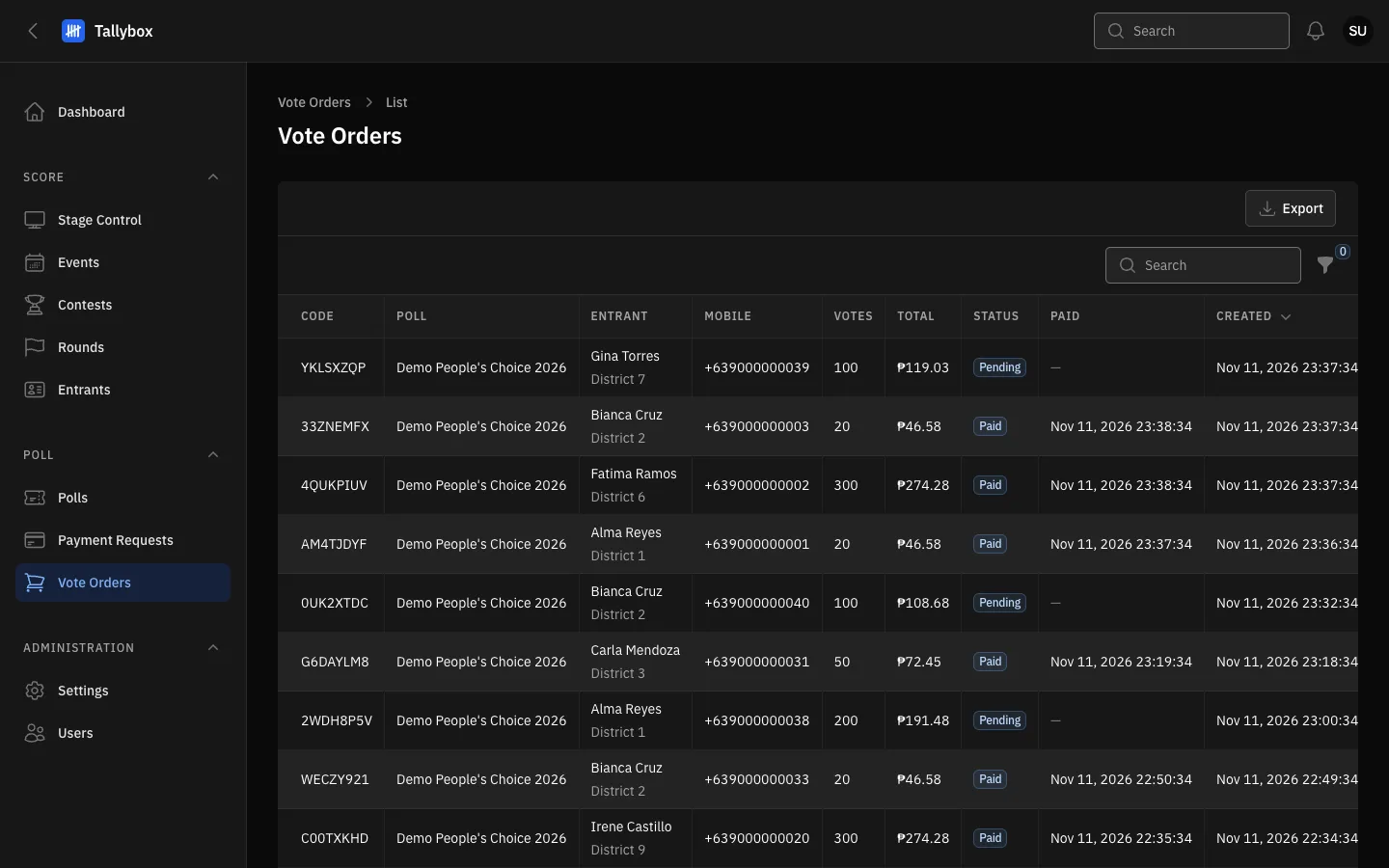
- Export: sends the rows you are looking at to a spreadsheet.
- Search: finds an order by its code or mobile number.
- Filter button: show only one status or one poll.
- Status: Pending means the voter has not paid yet.
Read one order
The order page shows who bought, which entrant they voted for, where they are, and the money: Items total, the Convenience fee, the Processing fee and the Grand total. Paid stays empty until the payment is confirmed.
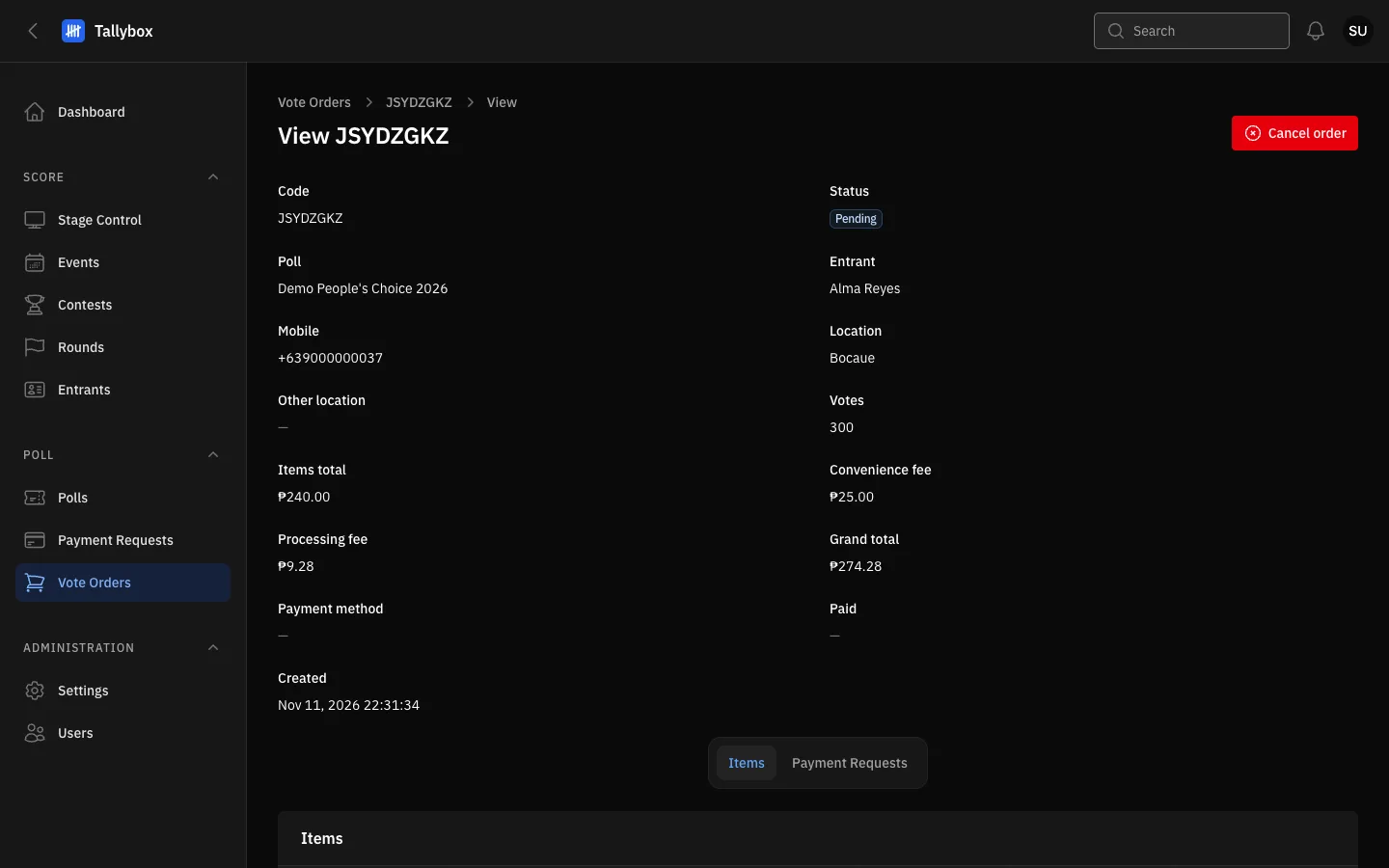
- Cancel order: appears only while the order is Pending.
- Status of the order.
- Grand total: what the voter is asked to pay, fees included.
- Tabs: Items shows what was bought, Payment Requests shows each attempt to collect payment.
Items and Payment Requests
Choose the Items tab to see which bundles were bought and how many of each.
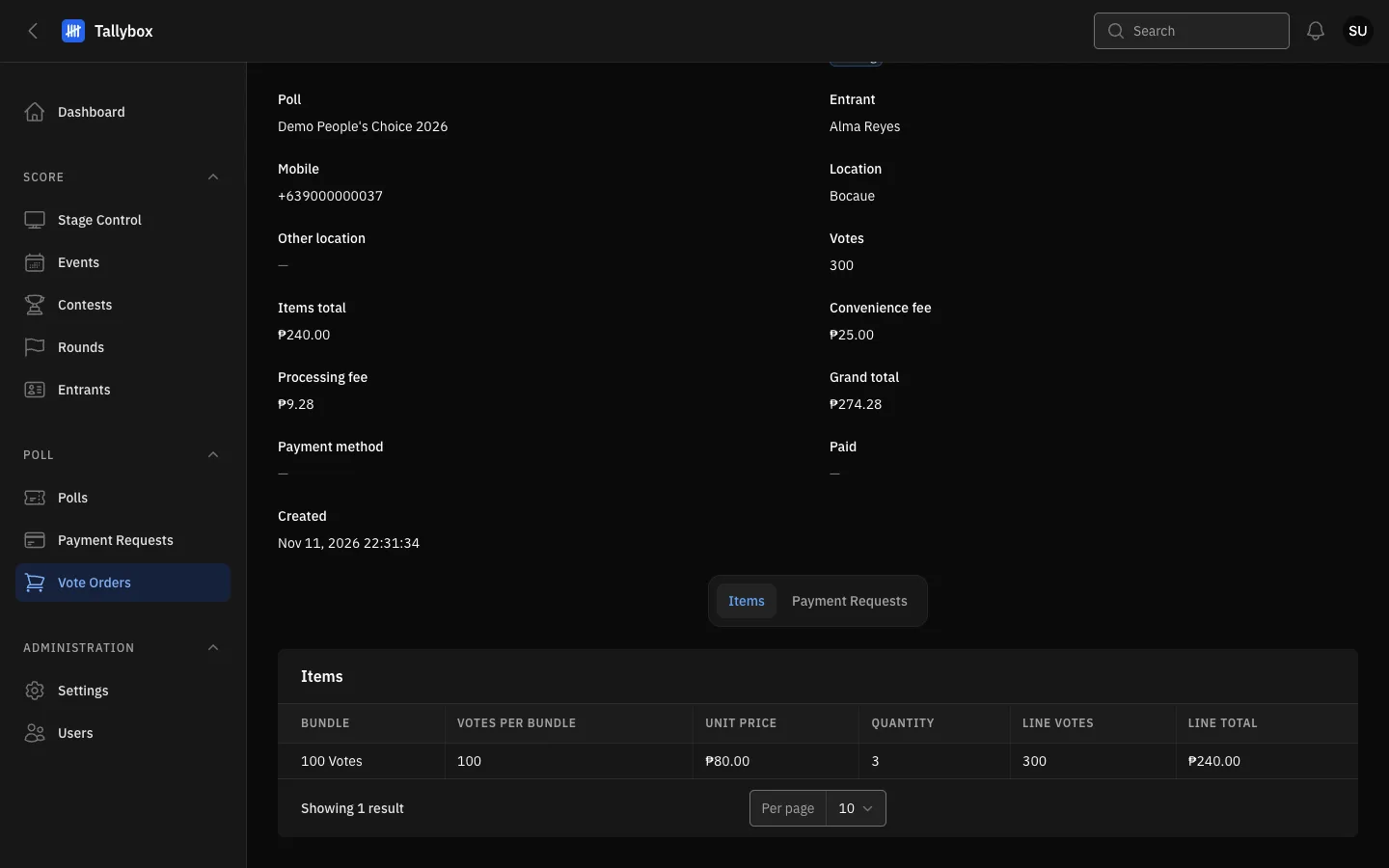
- The bundle bought, how many votes it holds and its price.
- Line total: quantity times unit price. Fees are added on top, on the order itself.
Choose the Payment Requests tab to see every attempt to collect payment for this order. A voter who gave up and tried again leaves more than one row. These tabs are read-only. To follow up a request, see Review and re-check payment requests.
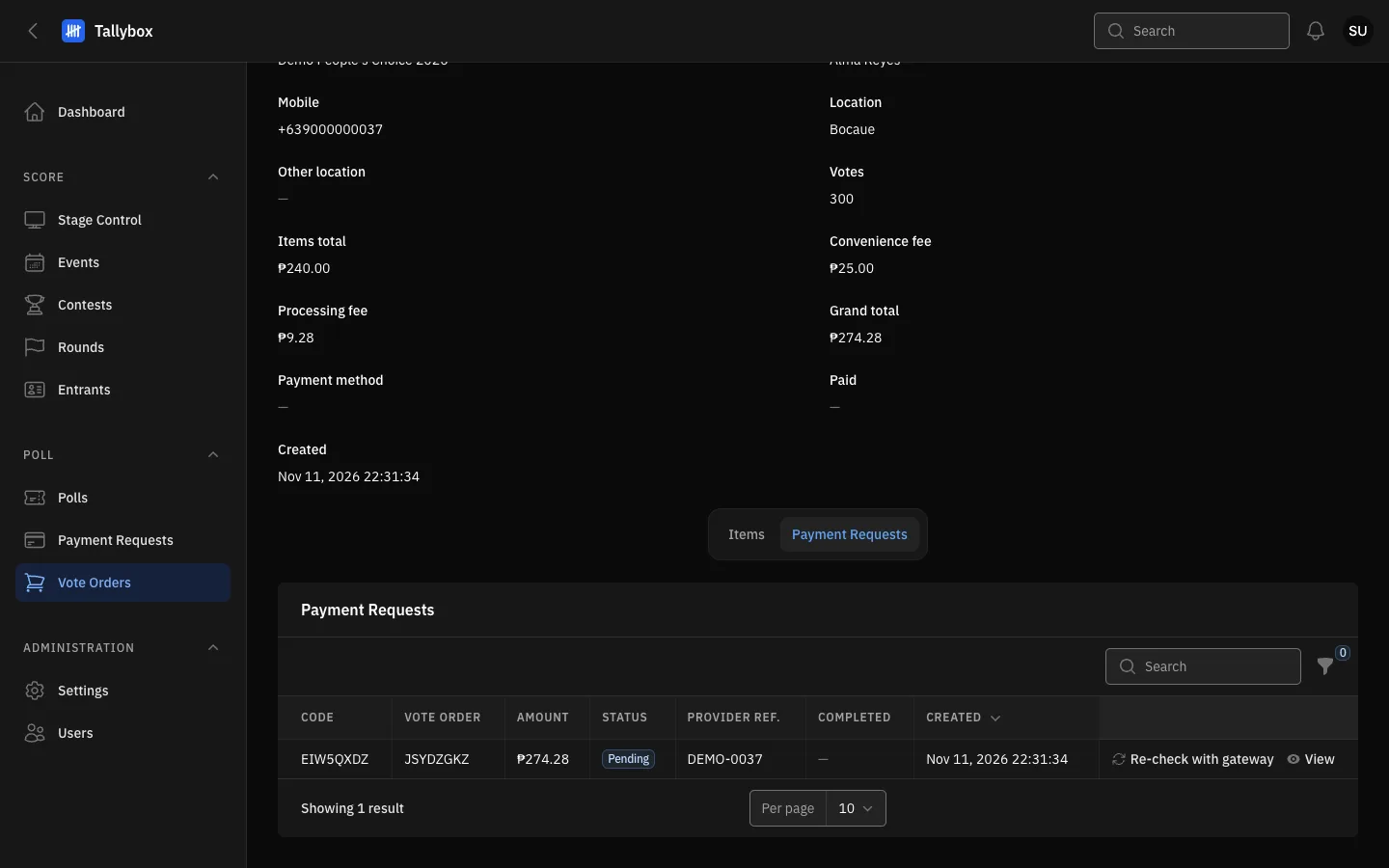
- Re-check with gateway: only for a Pending request, and only for a Super Admin or Admin.
- View: opens the payment request.
Cancel an order
Cancel an order only when you are sure the voter will not pay, for example a duplicate. A Super Admin or an Admin can do this.
- Open the order and check its Status is PendingThe Cancel order button does not appear on Paid, Failed, Expired or Cancelled orders.
- Choose Cancel order at the top right
- Read the message, then choose ConfirmChoose Cancel in the message instead to leave the order as it is.
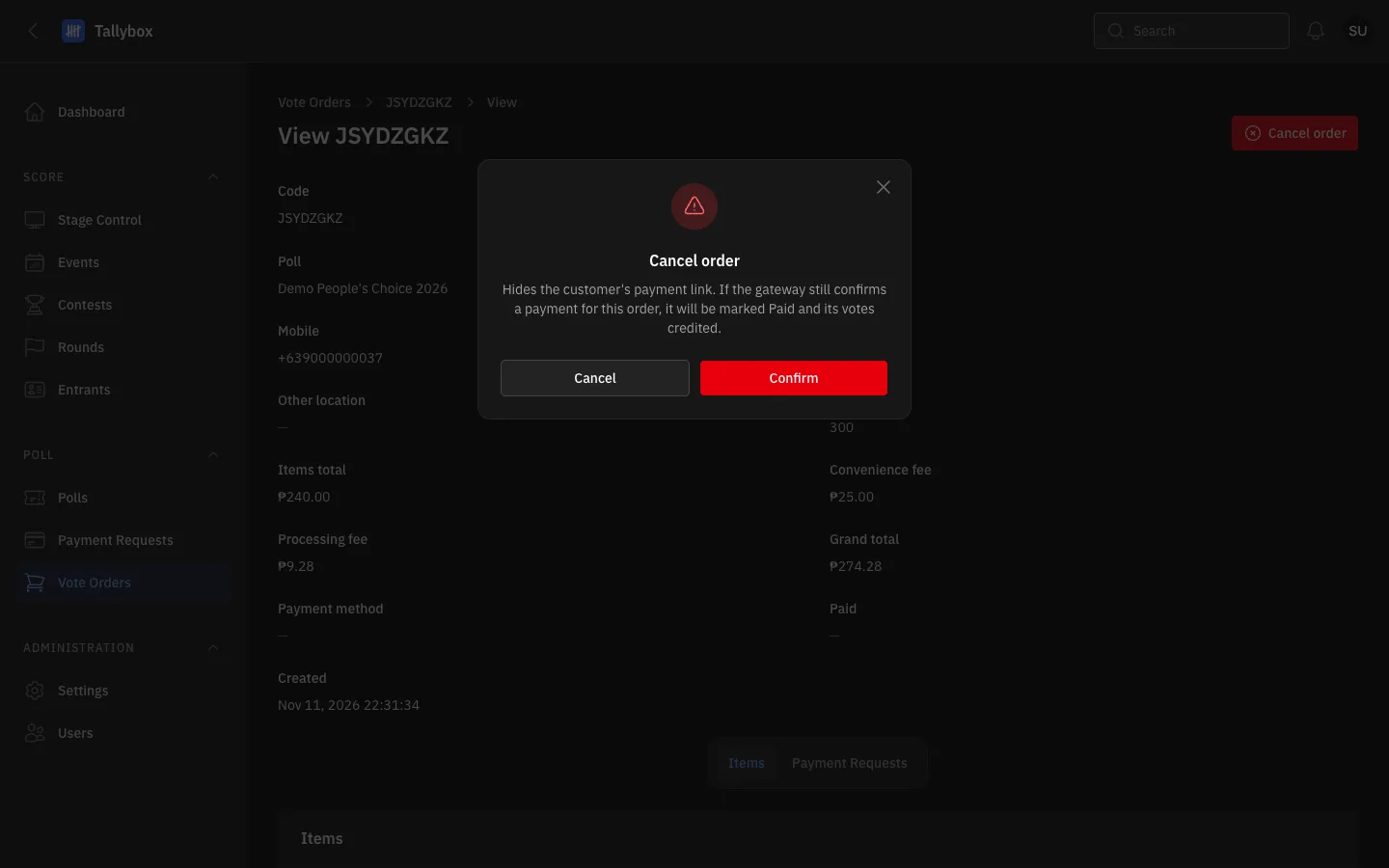
- Read this first: a late payment can still turn a cancelled order into a Paid one.
- Cancel: closes the message and changes nothing.
- Confirm: cancels the order.
Export the list
- Filter or search first, if you only want some ordersThe file holds exactly the rows the list is showing.
- Choose Export above the table
- Wait for the notificationA message says "Exporting vote orders". When the file is ready, another notification arrives with a download link.
The spreadsheet has two sheets. Orders has one row per order: code, poll, entrant, mobile, location, votes, items total, convenience fee, processing fee, grand total, status, payment method, and the paid and created times. Items has one row per bundle bought. If nothing matches your filters you will see "Nothing to export". Starting a second export while one is still being made shows "An export is already in progress".